
Embedding External Webpages in a Dashboard
Introduction
You can enhance your dashboard by embedding external webpages directly into it. This can be achieved using the 'Embed external page' feature, a simple and effective way to display content from other websites seamlessly. This article will guide you through the process of embedding external webpages into your dashboard, such as Excel, Power BI and YouTube.
Step-by-step Guide
- In TeamAssurance, open the relevant Dashboard Activity
-
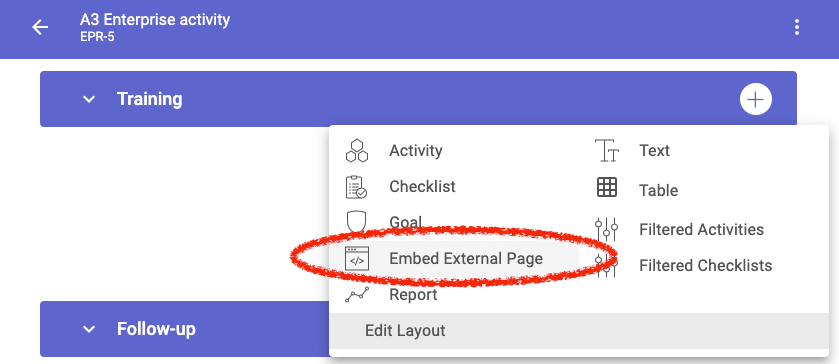
Identify the section where you want to embed the webpage and click on the "+" menu
-
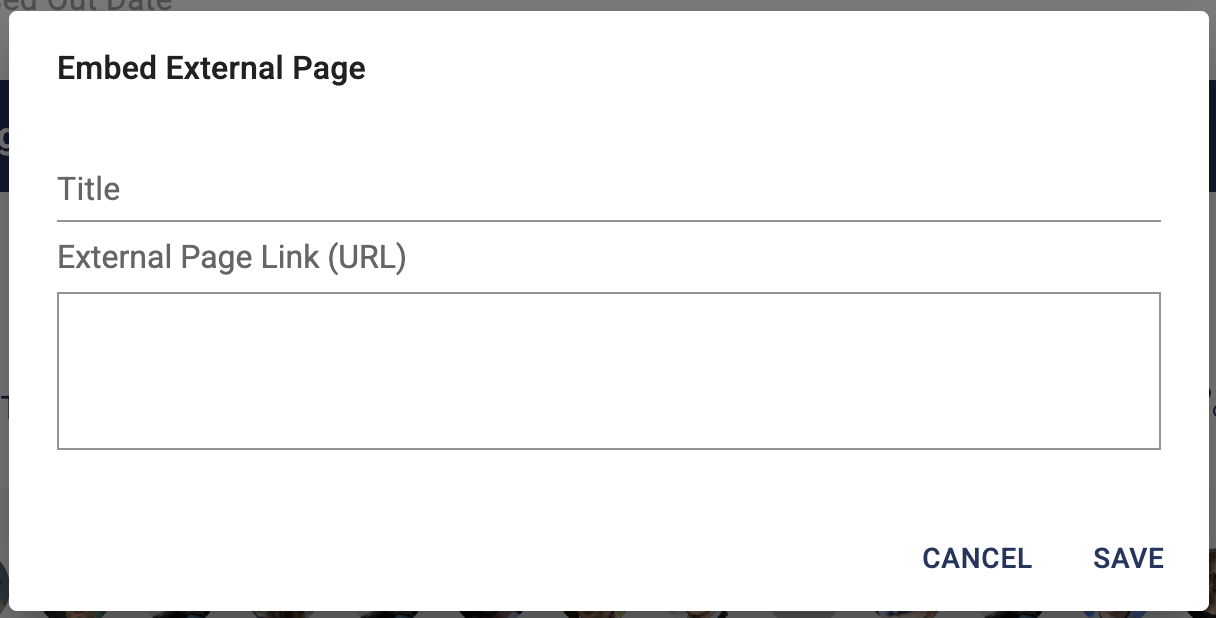
Select Embed external page. Leave this open for now
-
In a separate browser tab, open the website and navigate to the element you want to embed
Below is an example from YouTube. Click on the Share button for a video to see this pop-up:
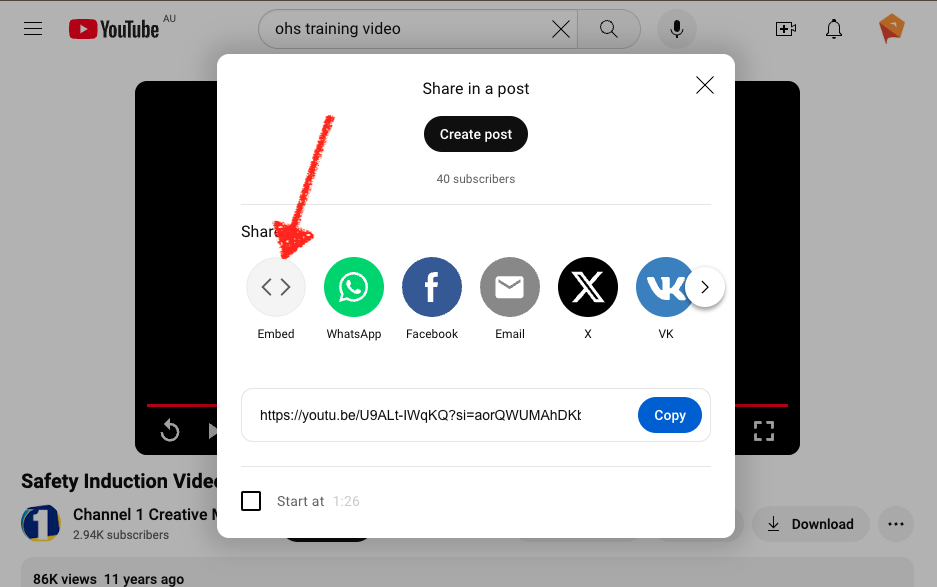
Click on Embed option
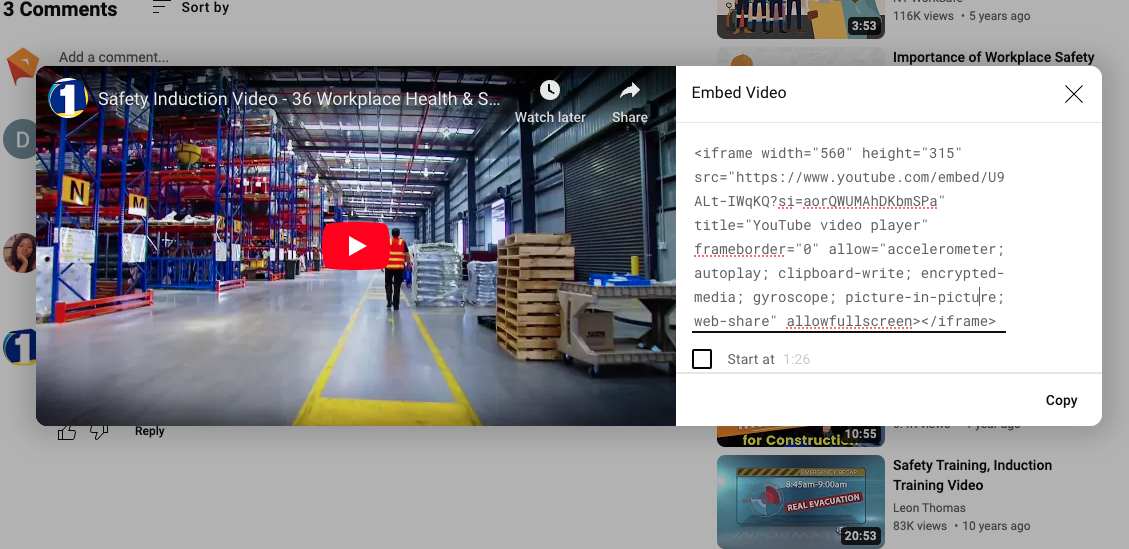
Click Copy
-
Go back to TeamAssurance and paste
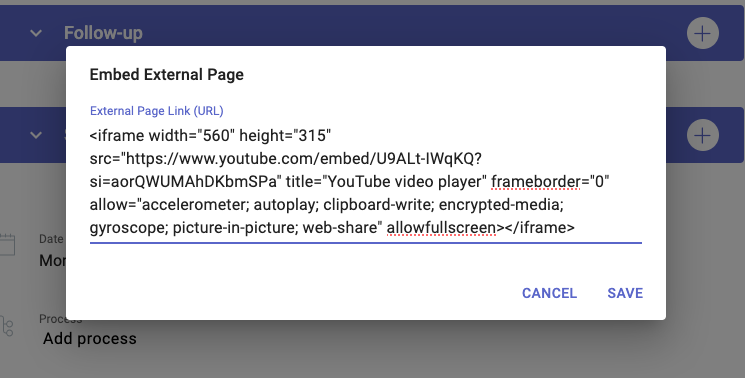
-
Save.
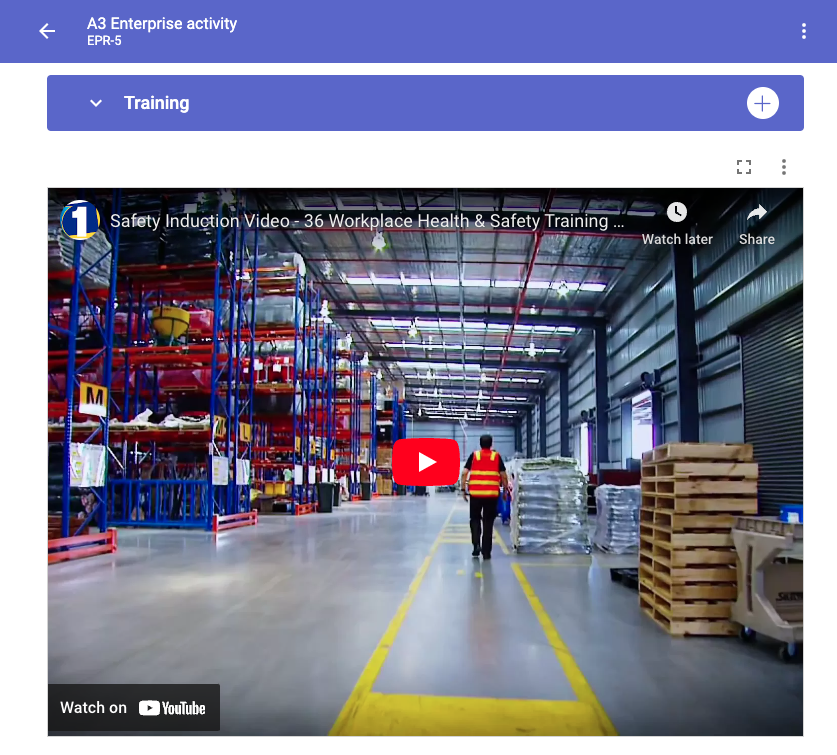
The webpage is now embedded. In this example, the YouTube video can be played and controlled from within TeamAssurance.
Additional Tips:
- Ensure that the external webpages you're embedding support iframe.
- Each webpage has their own way of getting to the iframe url that needs to be copied. Usually it is an option behind a Share button.
- See links below for some specific examples.
- For Microsoft products (Excel, Word, PowerBI), you will need to be in the Microsoft365 webpage to find the Share settings (and not the installed app).
- If the external webpage requires a login (e.g. PowerBI, Excel), make sure you are logged in on another browser tab. TeamAssurance pulls through the permissions of that logged in user.
Specific guides:
- Excel
- PowerBI
- Sharepoint
- Tableau
- There are many other webpages and web-applications that you can embed. To check if it is possible, look in the help documentation of those web applications.