
Embed: Spreadsheets
Display a live spreadsheet directly in TeamAssurance.
Excel spreadsheet
1. Open the file in Microsoft365 on a browser like Edge or Chrome (this option will not work if accessing the file on an installed desktop app).
2. Click on File -> Share -> Embed

3. Highlight and copy the text snippet in Embed Code.
Ensure the PREVIEW has the tab and cell selected that you want it to display when it is embedded. In the below example, it is Sheet 1, cell A1 ("Metric"). Then copy the embed code.

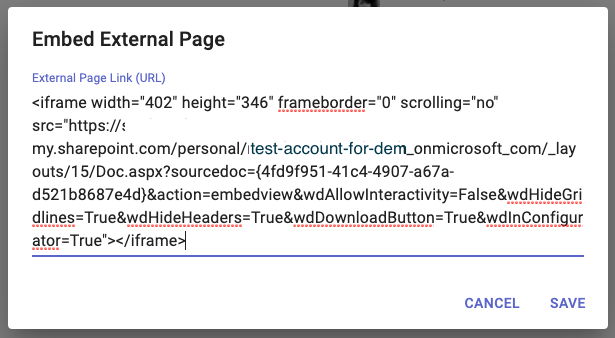
4. Now switch to the TeamAssurance Activity where the Excel spreadsheet is to be embedded. Click on the section's "+" icon and slect Embed External page

-
Paste the copied text snippet and SAVE
The Excel spreadsheet will now display in your TeamAssurance activity

To edit the spreadsheet, use the icons in the bottom right corner to open the Excel spreadsheet in another tab.