
Checklist template options
Each template has options that enable specific features.
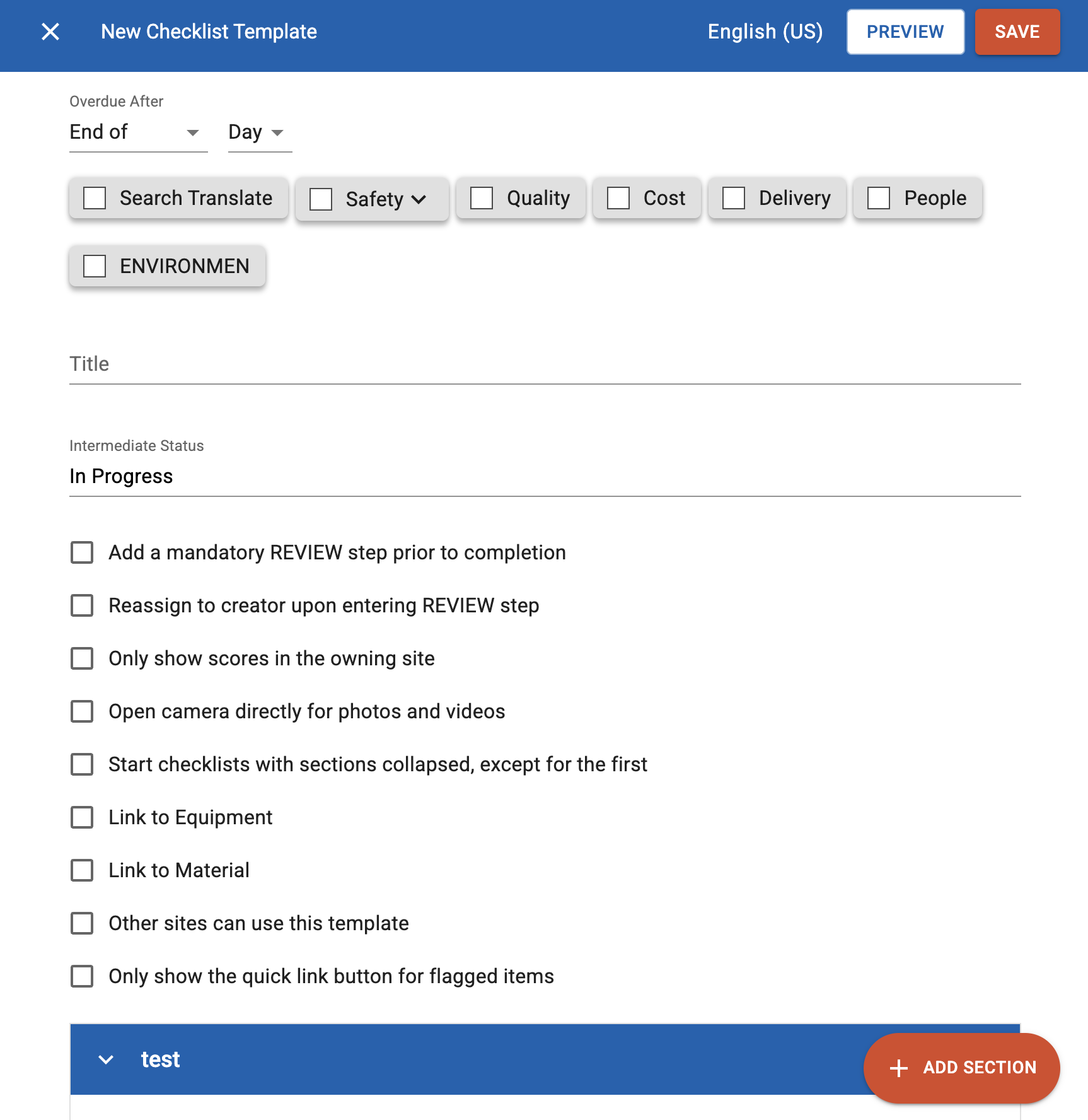
- Add a mandatory REVIEW step prior to completion
- Reassign to creator upon entering REVIEW step
- Only show scores in the owning site
- Open camera directly for photos and videos
- Start checklists with sections collapsed, except for the first
- Link to Equipment
- Link to Material
- Other sites can use this template
- Only show the quick link button for flagged items
Add a mandatory REVIEW step prior to completion
By default, a checklist has two buttons at the top: MARK AS DONE and SAVE IN PROGRESS.

It can be worked on and saved-as-you-go for as long as required, until it is ready to submit. Clicking on MARK AS DONE will change the Status to DONE. No further changes are possible.
The Review option will add a status in between.

It can be worked on and saved-as-you-go for as long as required until it is ready to submit for Review. At this stage the Status will change to IN REVIEW. Open after it is sent for review, and the usual MARK AS ONE and SAVE IN PROGRESS buttons are displayed.
It may also be useful to create a Filtered Checklist List to automatically monitor for items that require review.
Reassign to creator upon entering REVIEW step
It is not possible to automatically reassign checklists using this feature, except back to the person that created the checklist template. This is typically only used in the Supplier module. e.g. an external Supplier will complete a checklist (such as. a Supplier Questionnaire) and when this external supplier submits for review, the checklist is assigned back to the Quality team. See more in the Supplier module documentation.
Only show scores in the owning site
Responses to Multiple Choice and Multiple Select questions can be scored. By default the score will be displayed on the checklist as the person is filling it out. If the score should remain hidden to the person that is filling it out;
- Make the template available to other sites
- Select this option
The template may exist at a Head Office site or similar, and then made available to other sites. In this scenario, only the Head Office site would see the scores.
It may also be useful to create a Filtered Checklist List to automatically monitor, pulling in checklist from other sites.
Open camera directly for photos and videos
For inspections that are typically completed on a mobile phone, it's possible to force the camera to open for any 'Upload photo' question. This prevents the user from selecting a photo from the phone Gallery, ensuring the photo is an accurate representation of the condition at the time of the photo.
Start checklists with sections collapsed, except for the first
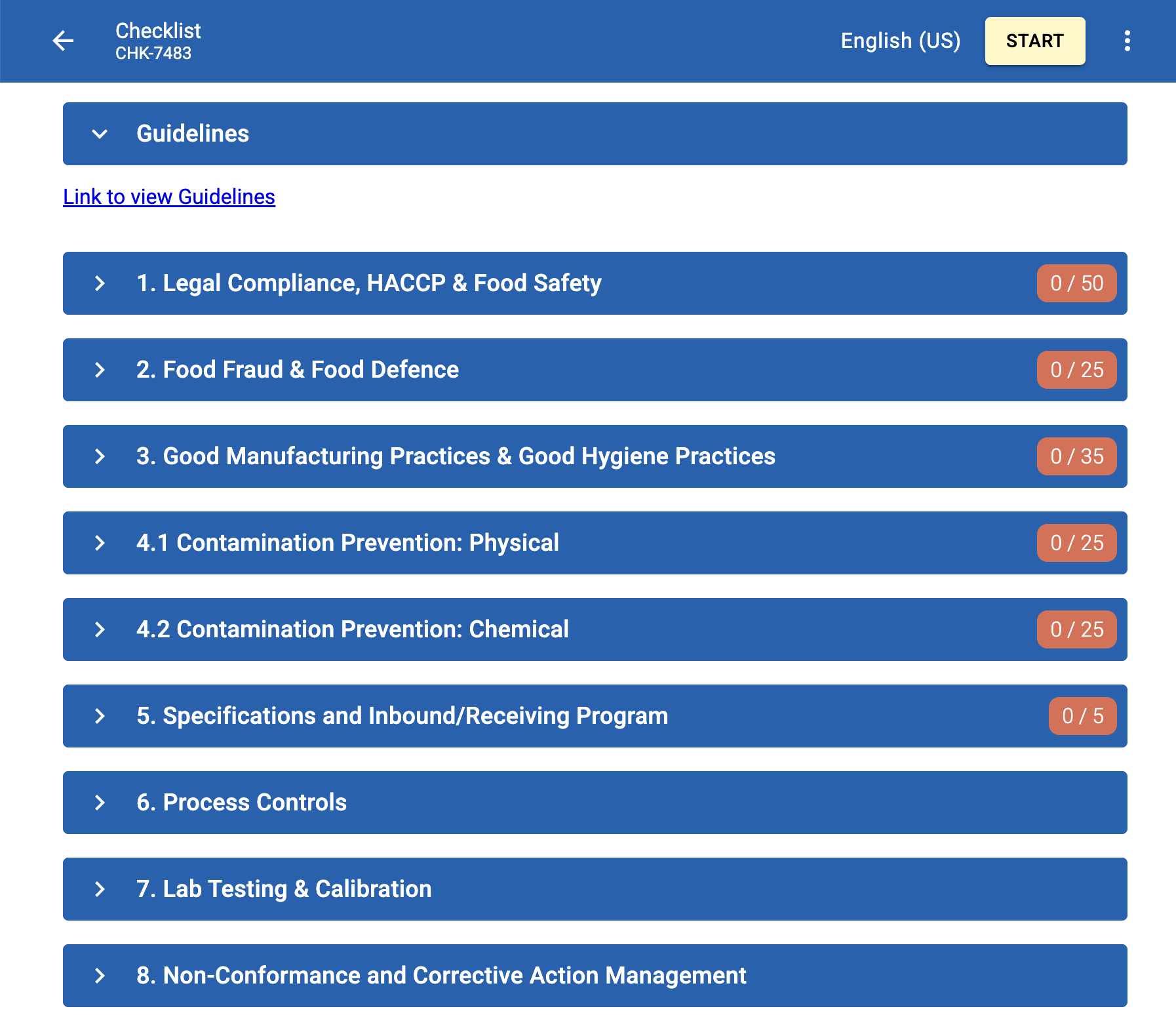
A section can be used to group related questions. A checklist can be made up of one or many sections. Sections can be manually collapsed to hide questions, then expanded to display all questions in that section. Where a checklist has many sections, it can be useful to start the checklist with the sections collapsed. This will help with loading time (especially on mobile devices), helps the user keep track of where they're up to and generally feel less overwhelming.
Link to Equipment
Tag equipment (or asset) on a checklist.
Setup
- You can specify the equipment at the template level. Then each checklist that is started using this template will automatically have that equipment tagged.
- Or you can leave it blank, and the person that starts the checklist can add the equipment themselves. This might be useful where the same checklist is used across many similar items of equipment.

Asset module
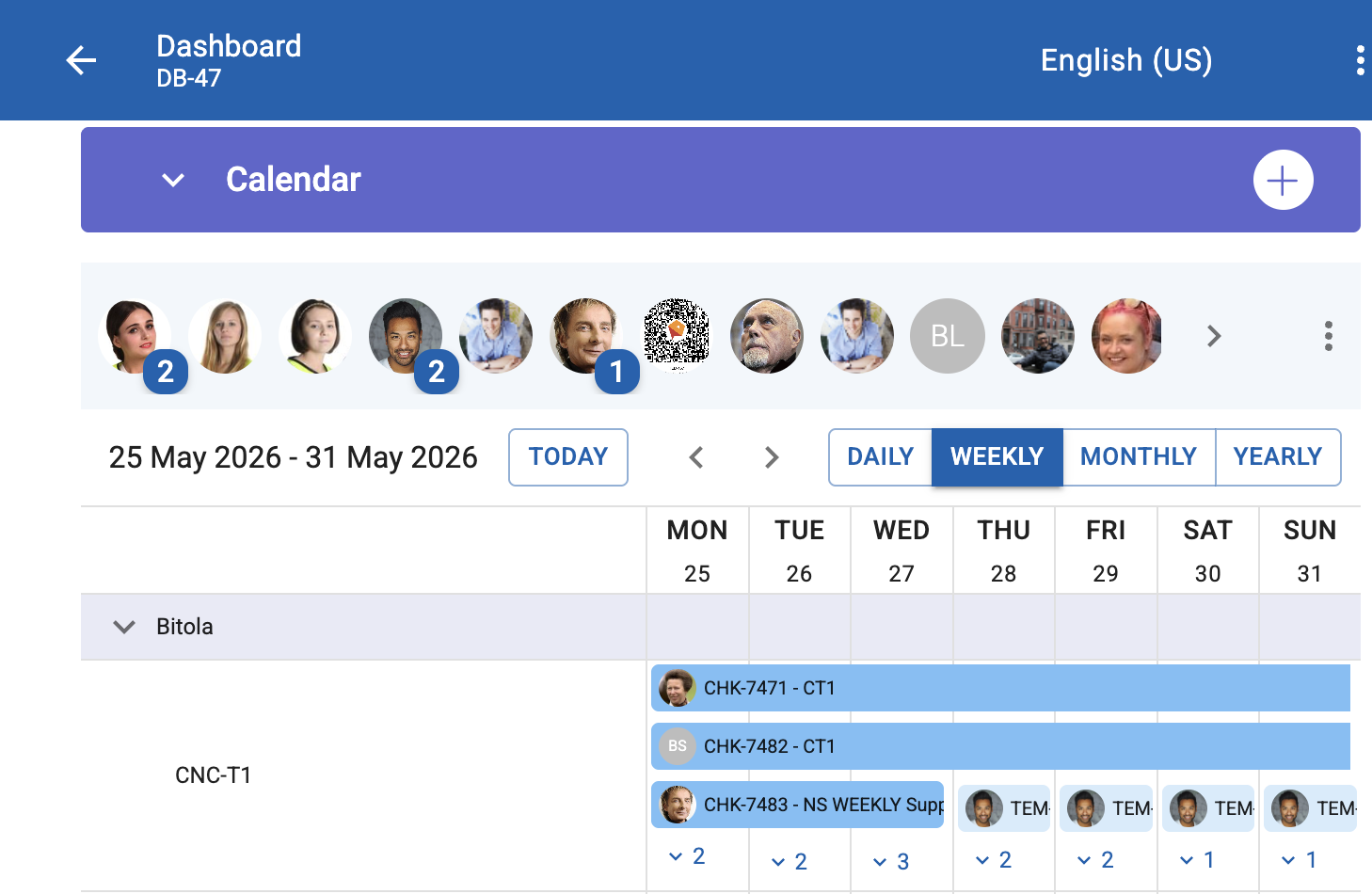
When used in combination with the Asset module, this becomes very useful for maintenance teams.
- Asset calendar - any schedule that has equipment will be automatically pulled into a calendar and displayed
- Each item of equipment has it's dedicated overview. The schedules associated with it will display in a Filtered Checklist List in a section on the page, along with any activities and other information.
Link to Material
Similar to Link to Equipment. Tag Materials on a checklist.
Setup
- You can specify the material at the template level. Then each checklist that is started using this template will automatically have that material tagged.
- Or you can leave it blank, and the person that starts the checklist can add the material themselves.
Other sites can use this template
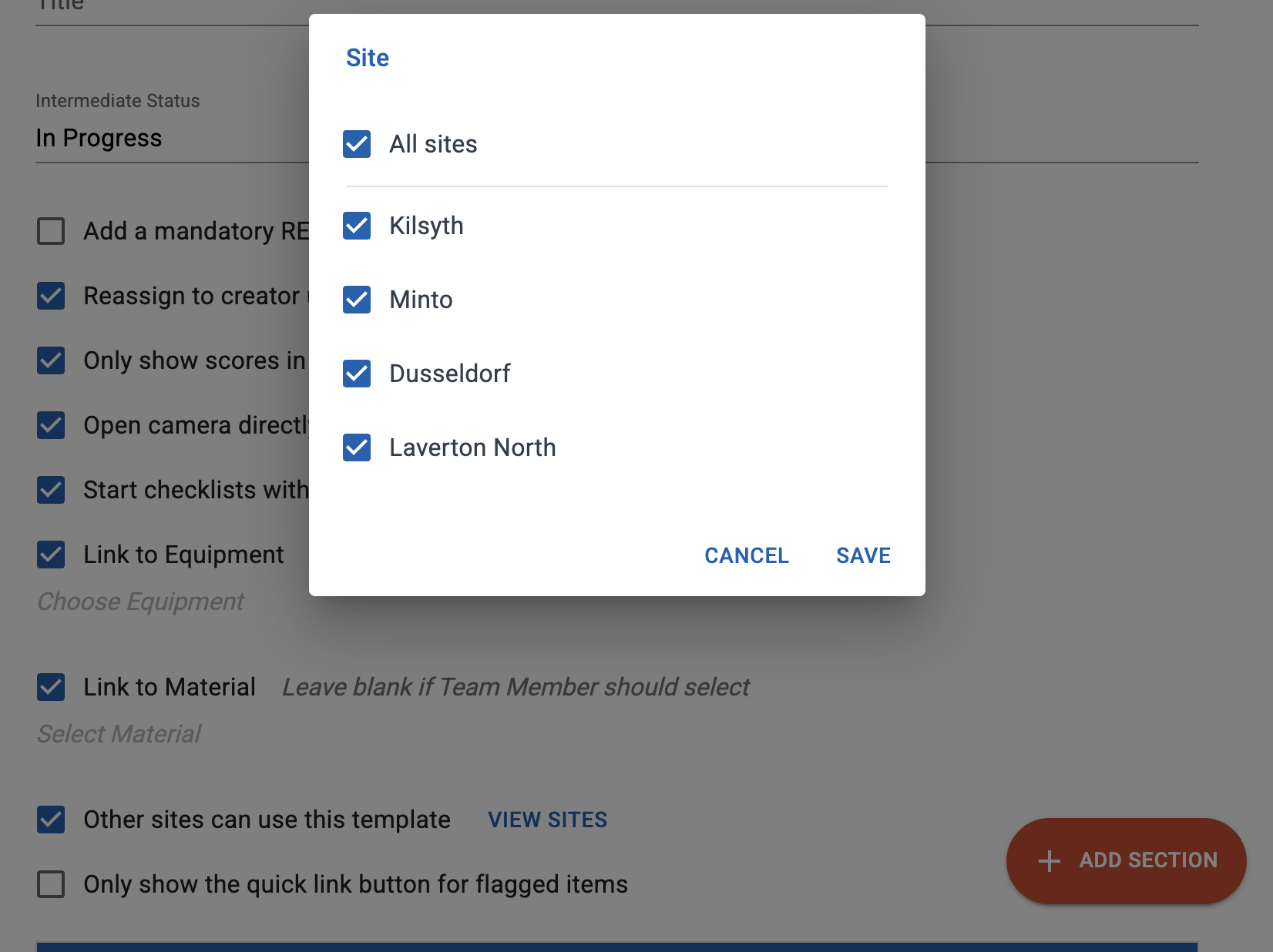
A template can be made available to other sites so they can use it. It can be made available to one or all sites in the same Enterprise. These sites can create checklists based on this template, but they cannot make changes to the template itself. Each template is owned by the site it is originally created in, and the template can only be edited in this site. And all changes are immediately available to the other sites. This ensures appropriate governance for template changes.
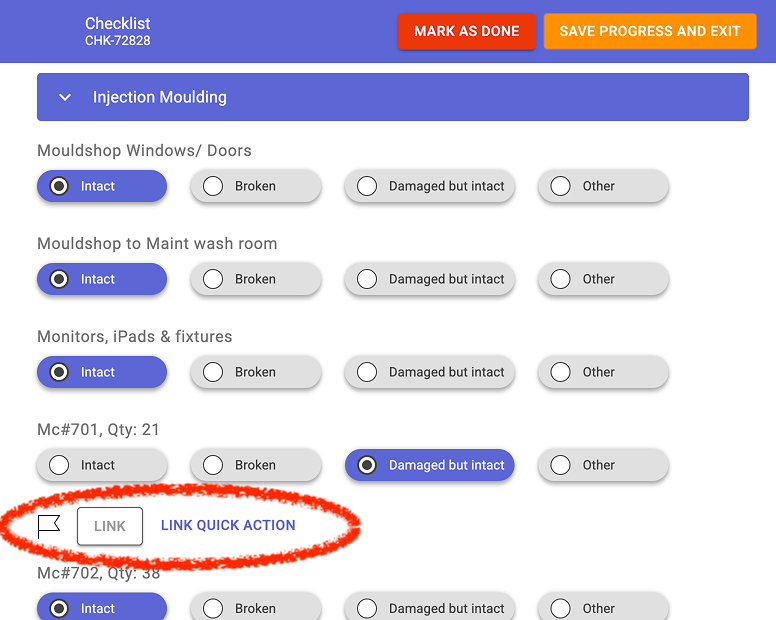
Only show the quick link button for flagged items
If a response triggers a flag, you'll be prompted to add an activity.
- Link - opens a full page activity with all fields to complete (summary, detail, due date etc)
- Quick Link - pop-up Action on page with limited info, defaulting to yourself as assignee and a COMPLETE status.
If the full-page option is not required, select this.
Note that some options are only available if the site has the modules enabled.