
Auto Discard Checklists
Auto Discard Scheduled Checklists
Overview
The Auto Discard feature helps you manage overdue checklists automatically. When enabled, scheduled checklists that become overdue are automatically discarded, preventing your overdue count from becoming unmanageable.
This feature is particularly useful for daily or frequently scheduled checklists where uncompleted items are unlikely to be actioned after they're overdue.
When to Use Auto Discard
Auto Discard is ideal when:
- You have daily or regularly scheduled checklists that aren't always completed
- Overdue checklists lose relevance once the due date passes
- Users typically move on to the next scheduled instance rather than completing overdue ones
- You want to keep your overdue count manageable and accurate
How Auto Discard Works
When you enable Auto Discard for a checklist schedule:
- Monitoring: TeamAssurance checks for overdue checklists every 10 minutes
- Eligibility: Checklists that are past their due date and still in New, In Progress, or In Review status are identified
- Automatic Discard: Eligible checklists are automatically moved to Discarded status
- Discard Reason: The system automatically adds the discard reason: "Automatically discarded because it was overdue"
- Near Real-Time: This happens throughout the day (every 10 minutes), not as an overnight batch process
Enabling Auto Discard
For New Schedules
When creating a new checklist schedule:
- Go to Checklists
- Click the Schedule tab
- Click New Schedule button
- Configure your schedule settings (repeat frequency, assigned team, start date, etc.)
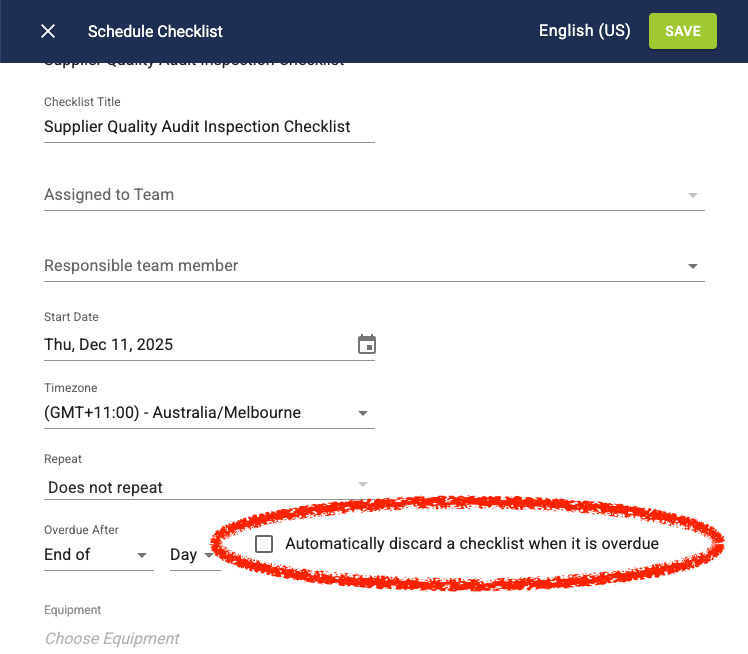
- In the Overdue After section, specify when the checklist should be considered overdue
- Check the box next to "Automatically discard a checklist when it is overdue"
- Click Save
For Existing Schedules
To enable Auto Discard on an existing schedule:
- Navigate to Checklists > Scheduled
- Locate the schedule you want to modify
- Click the Edit icon (pencil) next to the schedule
- Scroll to the Overdue After section
- Check the box next to "Automatically discard a checklist when it is overdue"
- Click Save
Important Notes
- Default Setting: Auto Discard is disabled by default. You must explicitly enable it for each schedule where you want this behaviour.
- Overdue Period Required: You must set an "Overdue After" period for Auto Discard to work. This defines when a checklist becomes overdue and eligible for automatic discard.
- Status Colours: Discarded checklists appear as a grey box on the Asset calendar to visually distinguish them from other statuses.
- Not Reversible: Once a checklist is auto-discarded, it cannot be automatically restored. However, you can manually change its status if needed (and if you have permissions to do so).
- Excluded Statuses: Auto Discard only affects checklists in New, In Progress, or In Review status. Completed or already discarded checklists are not affected.
Viewing Auto Discard Settings
To check if Auto Discard is enabled for a schedule:
- Navigate to the schedule in Checklists > Scheduled
- Click on the schedule to view its details
- Look for the Automatically discard a checklist when it is overdue field
- It will show Yes if enabled or No if disabled
Example Scenario
Situation: Your team has a daily safety inspection checklist scheduled for 9:00 AM each morning, set to become overdue after 4 hours (1:00 PM). If the inspection isn't done by 1:00 PM, it's typically skipped in favour of the next day's inspection.
Without Auto Discard: Each missed inspection adds to your overdue count. After a week of occasional misses, you might have 3-5 overdue checklists cluttering your list.
With Auto Discard: When enabled, any inspection checklist that reaches 1:00 PM without completion is automatically discarded within 10 minutes. Your overdue list stays clean and focused on actionable items.
Frequently Asked Questions
Q: Can I see which checklists were auto-discarded? A: Yes. Auto-discarded checklists appear in your checklist list with Discarded status (grey colour) and include the discard reason "Automatically discarded because it was overdue" in the checklist details.
Q: What happens to checklists that are in progress when they become overdue? A: Checklists in In Progress status will also be auto-discarded if they remain incomplete past the overdue time and Auto Discard is enabled.
Q: Can I change the Auto Discard setting after creating a schedule? A: Yes. You can enable or disable Auto Discard at any time by editing the schedule.
Q: Does Auto Discard affect one-time (non-repeating) schedules? A: Auto Discard works with all schedule types - repeating and non-repeating. However, it's most beneficial for frequently repeating schedules.
Q: How quickly does Auto Discard happen after the overdue time? A: Auto Discard runs every 10 minutes, so a checklist will be discarded within 10 minutes of becoming overdue (plus the specified overdue period).