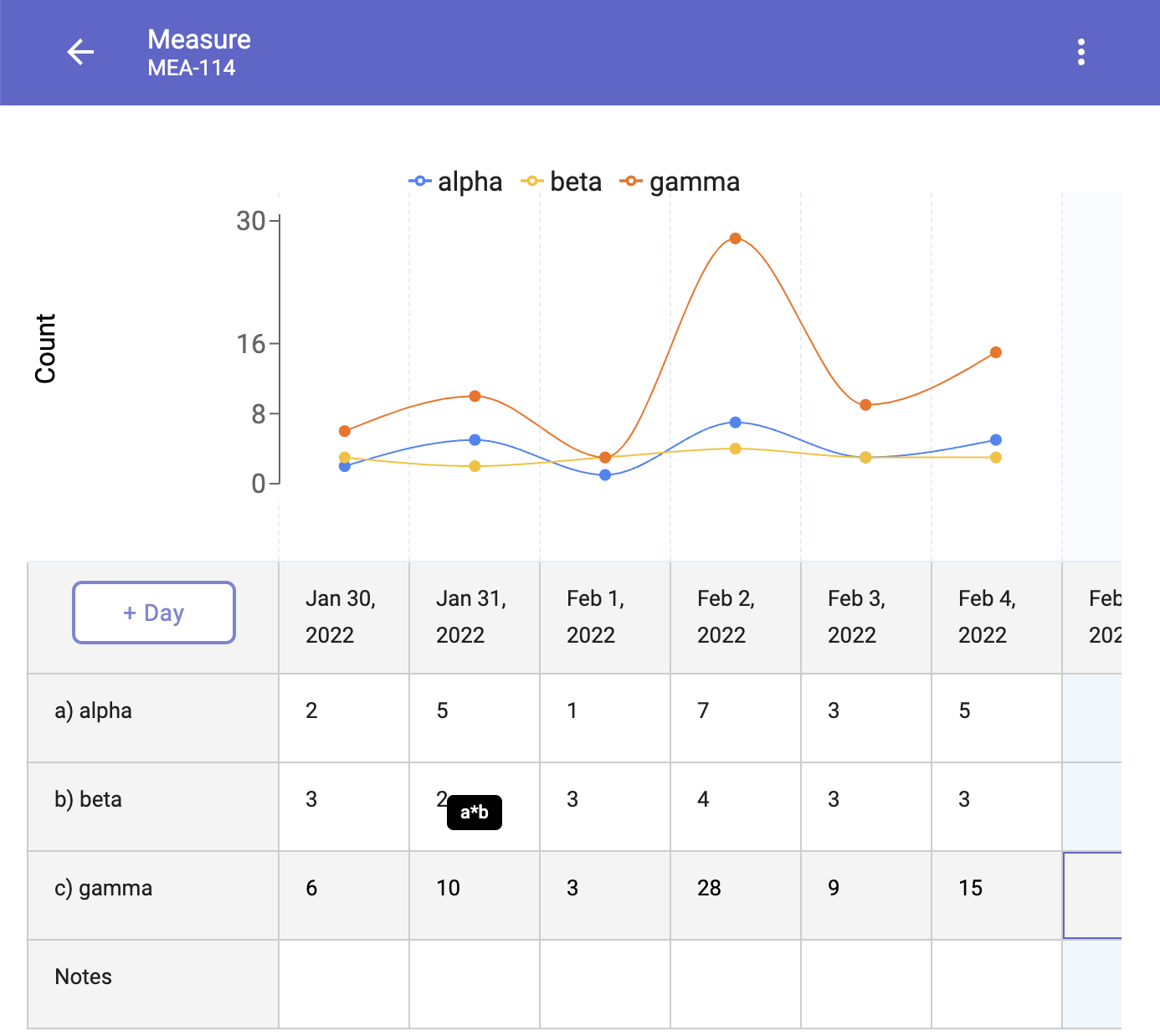
Add formulas/calculations to a Measure
1. Create a Measure Template activity
2. For Chart Type, select Multi-line

3. Decide the Series that will contain the formula, and click on the overflow menu (three dots).
4. Select Formula
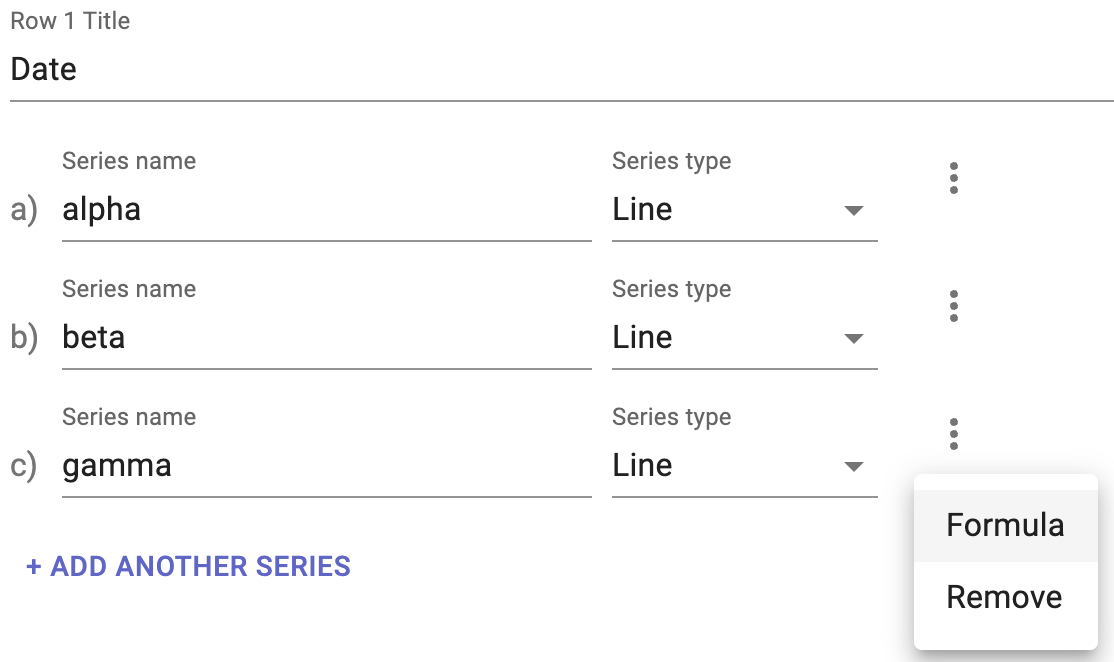
5. Enter the formula using the row reference. The allowed operators include
- * multiply
- - minus
- + add
- / divide
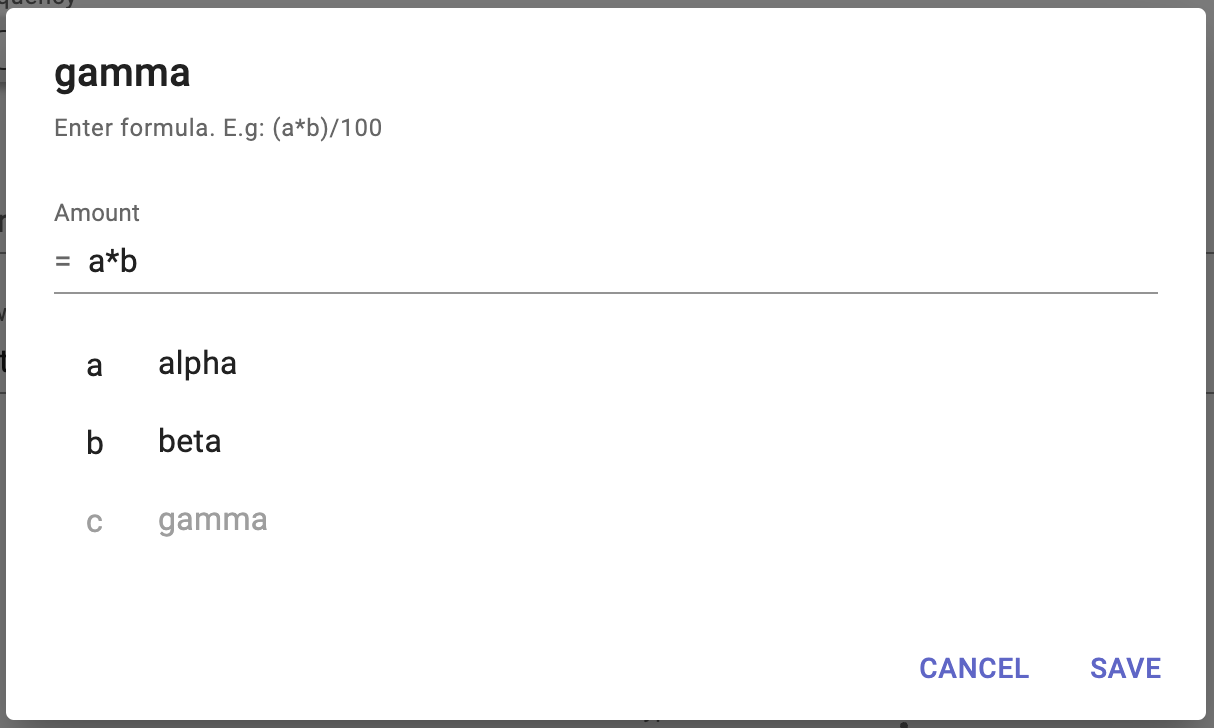
Save and continue until the template is completed
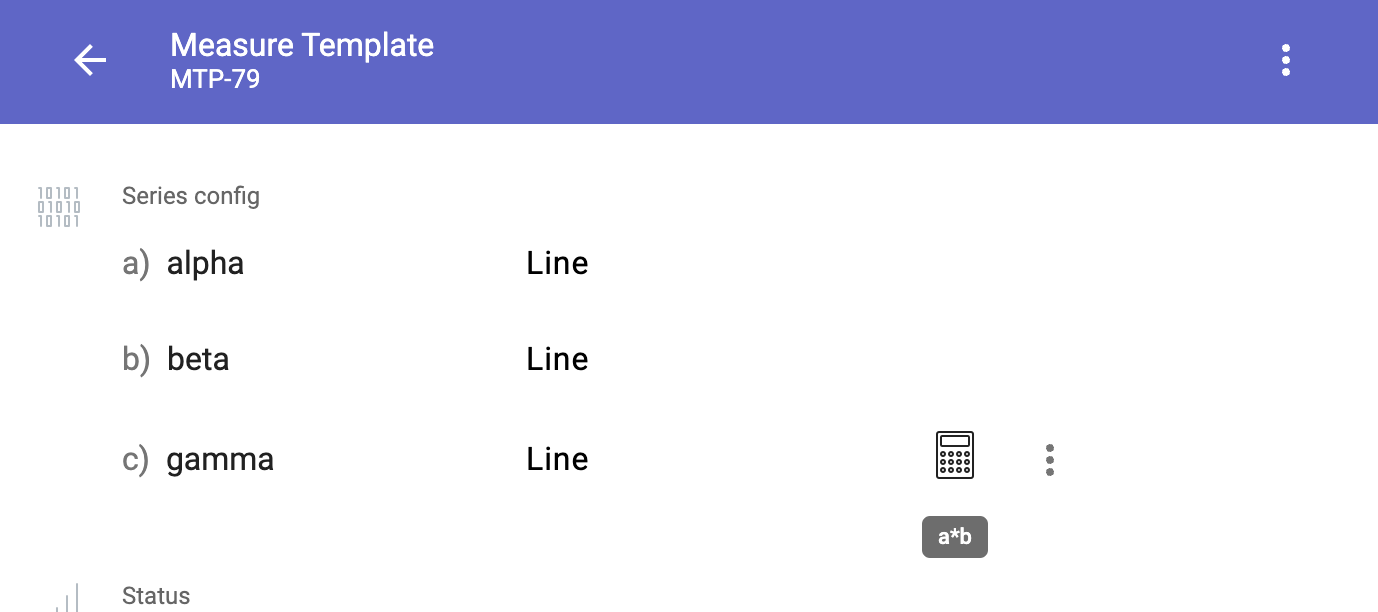
6. Series that contain formulas will show a calculator icon on the Measure Template. Hover over the icon to see the formula, or click on the overflow menu to edit the formula (note: changes will be applied to all Measures that are based on this template)
7. Create a Measure. Rows that are based on a formula are shaded grey