
Export Checklist Data
Analyze Checklist responses by downloading data and viewing it in a spreadsheet. Chart answers over time to find trends.
-
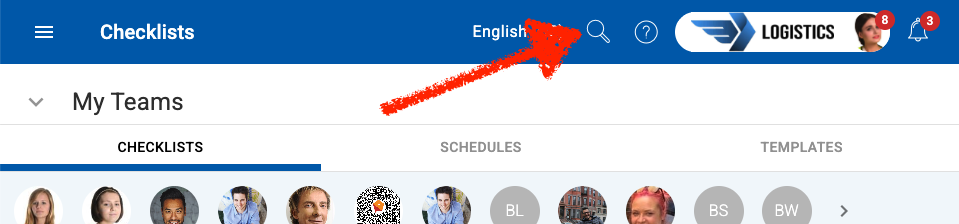
In Checklists, click on the search icon
-
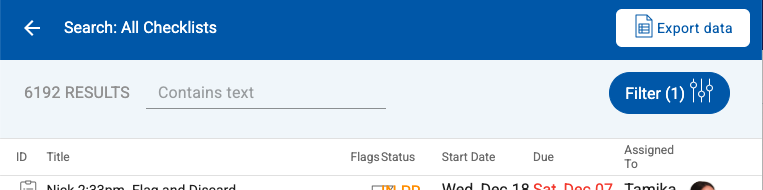
Use filters to refine you search, then EXPORT DATA
-
The records will download in a csv file
Open the downloaded file in any spreadsheet software (e.g. Microsoft Excel, Google Sheets)
FAQs
- Are there limits? The export is limited to the first matching ~1000. You can use Filters to refine your results to below this number before exporting, otherwise consider using the Reporting API.
- What data is exported? The file contains data about the checklist (Assignee, Due Date, Start Date, Status) and also Questions & Answers
- Can I see all the data in my tables? Table data is not downloaded, because an entire table's data cannot be fit into one spreadsheet cell. Instead the cell is populated with the text 'Table Content'. Consider using the Reporting API for full details.
- Where are the Checklist Questions? These are in the header (first) row of each column. The format is [template section] - [question]
- What are versions? - Any changes to a Checklist Template will save as a different version. For example, if a question was removed, and the template saved, then that is saved as another version.
- Are Photos and Attachments downloaded? Only the filename will be provided
- What happened to the EXPORT DATA button on the List page? This was removed in May 2026 and replaced with a dedicated Checklist Search page with filters, so that it is easier to refine the selection and export only the desired checklists