
Deactivate a user
When an employee leaves your organization or no longer requires system access, you can remove them from Team Assurance by deactivating their account.
Deactivating revokes their login access and team memberships while preserving their full activity history (such as past comments, created logs, and audit trails) for compliance and record-keeping.
How to Deactivate a User
-
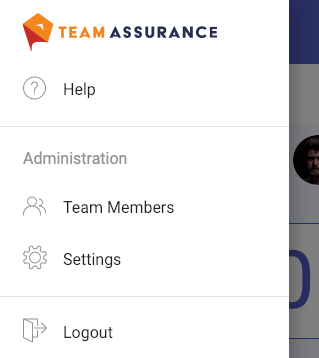
Navigate to the Team Members menu in Team Assurance (requires an admin level permission).
-
Search for and select the user you want to remove.
-
Open their user profile settings.
-
Change their profile status to Inactive / Deactivated.
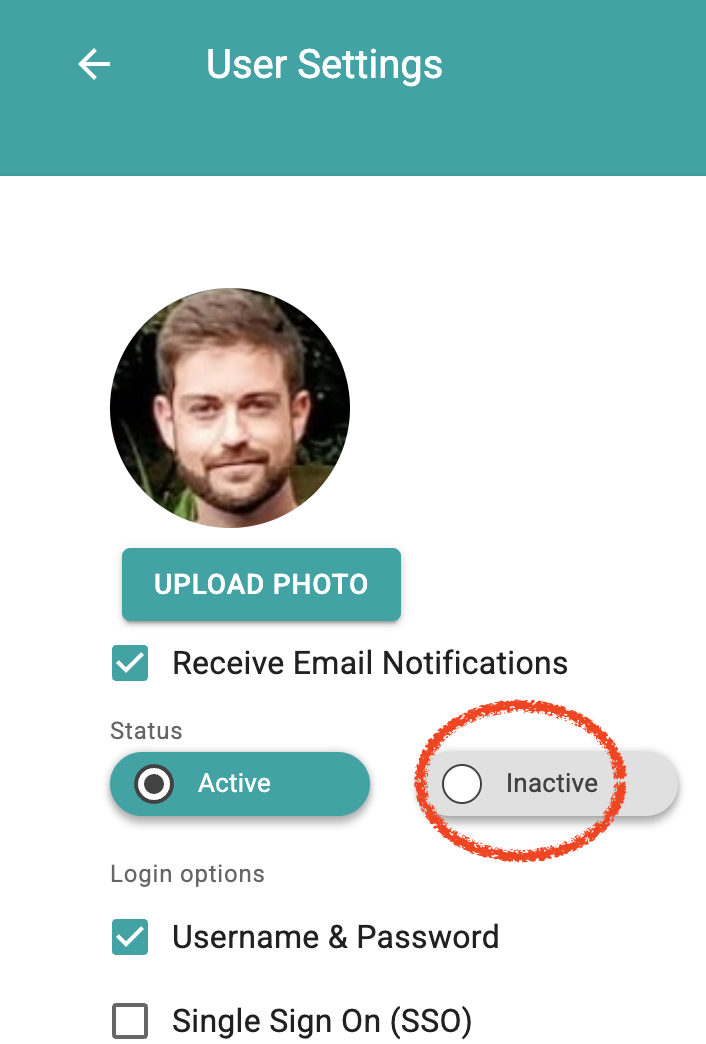
- Confirm deactivation.
Once deactivated:
- Access Removed: The user can no longer log into Team Assurance.
- Teams Updated: They are automatically removed from any assigned teams.
Managing Assigned Tasks for Deactivated Users
When a user is deactivated, any active tasks or items currently assigned to them will display their name with a strikethrough line (e.g., Gladys Tierney).
-
Checking Status: Inactive users can be found by filtering in Team Members.
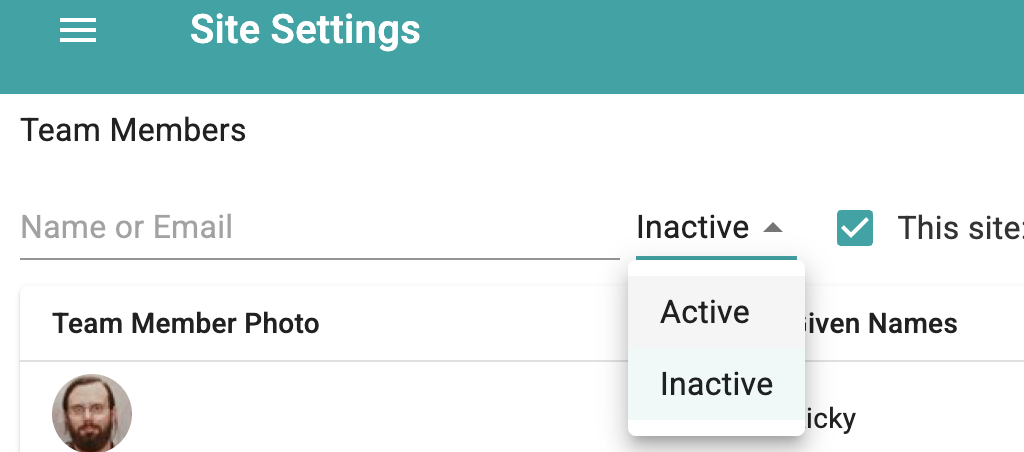
- Reassigning Work: While historical actions remain intact, any open or in-progress activities can be edited and reassigned to an active team member so work can continue seamlessly. This can also be changed in bulk on the Activities Search page (if you have the permissions to do so).
