
Power BI connector: Add a New Site
Prerequisite: The PowerBI Connector is already setup with at least one site
This is for Customers that have multiple Sites.
- Open the Key Vault in Azure
- Select Secrets. Click Generate/Import
- Fill in the following values:
-
Name - input the TeamAssurance Site Code
This is usually three-characters and are used to identify the TeamAssurance Site. If you are unsure, go to any Activity in the TeamAssurance site you are connecting, click on the three dots menu (top right) and Copy Link.
-

Now paste that somewhere. You will see the Site Code in the position highlighted below.

b. Secret value - API key
- Click "Create"
- Open the Import Workflow Logic app
- Click "Logic app deisgner"
- Expand "Init siteCode var to sites to run"
- Add the Site Code/ID to the array
- Click "save"

That completes the Site set-up. To ensure any historical data is pulled through in the next import, the LastRun date must be cleared.
Clear LastRun date
This deletes the reference date for how far back the import will look to pull data.
-
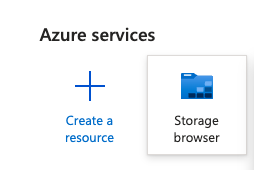
In Azure, navigate to the Storage Browser (or simply type Storage Browser in the Search bar)
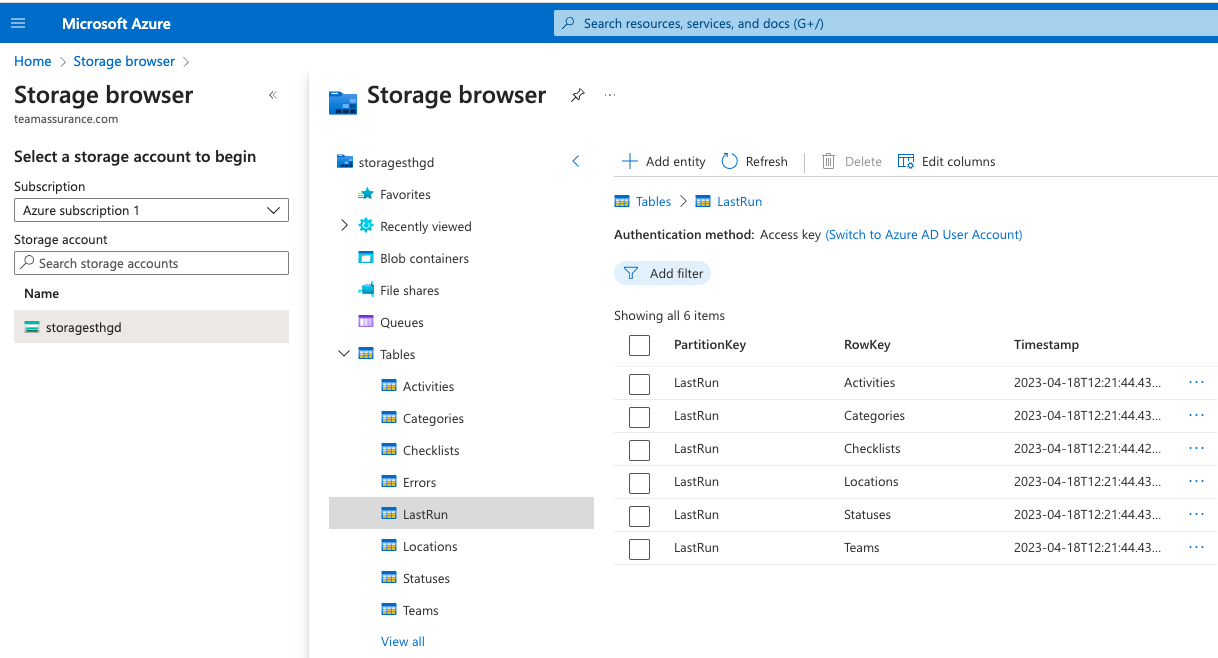
- Select the relevant storage account
-
Select Tables > LastRun
-
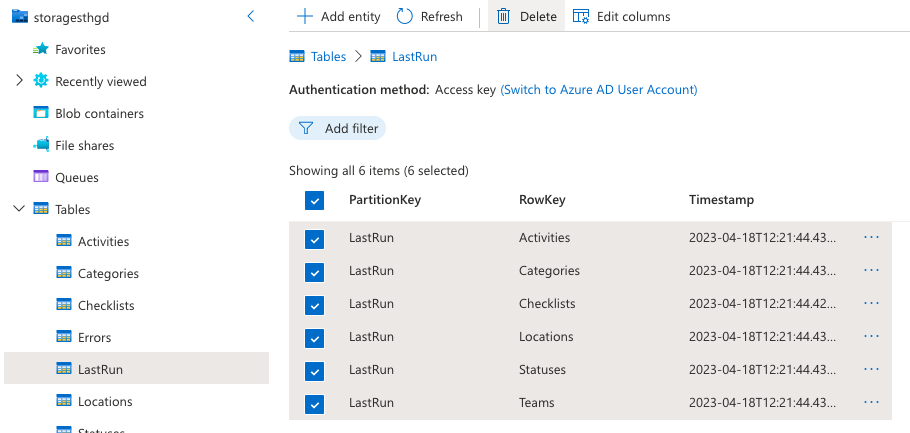
Check all the boxes for each LastRun, then Delete
-
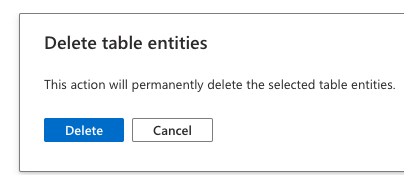
Confirm the Delete
The next scheduled run will now pick up the new Site including any historical data.