
Managing supplier contacts
Each supplier record has a list of contacts. A contact can be given a user so they can log in to TeamAssurance and work on issues and checklists you share with them.
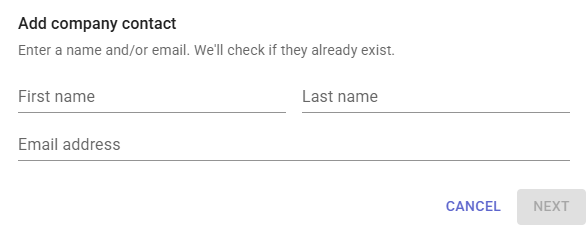
Contact details
Each contact row shows the contact's name, position, phone number, mobile number and email address. Click a value to edit it.
- The primary contact is marked Primary.
- Once a contact has a user, their name and email address can no longer be edited here.
Creating a user for a contact
Click Create User on the contact's row. Their user name then appears in the User Name column.
The primary contact must have a user before any other contact can be given one.
Checking when a contact last logged in
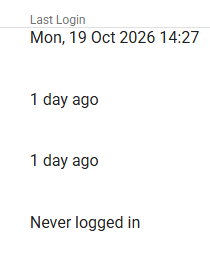
The Last Login column shows when each contact with a user last logged in. A login in the last few days shows how long ago it was, for example "3 hours ago", and you can hover over it to see the exact date and time. Older logins show the date and time.
If the column shows Never logged in, the contact has a user but no login has been recorded for them. This is a quick way to find suppliers who have not yet started using TeamAssurance.
Activating, deactivating and resetting passwords
For contacts with a user:
- Deactivate stops the contact from logging in. Activate lets them log in again.
- Reset Password generates a new password and emails it to the contact.
Changing the primary contact
Open the menu at the end of a contact's row and choose Make Primary Contact. If the current primary contact has a user, the new primary contact must have one too. If the current primary contact has no user, choose a contact without one.
Deleting a contact
Click Delete on the contact's row. Contacts with an active user cannot be deleted, so deactivate them first. The primary contact can only be deleted when it is the supplier's only contact.