AI Agent Studio: AI features and shared background
AI Agent Studio is where administrators control how TeamAssurance's AI features behave. In one place you can change a feature's instructions and model, choose which roles can use it, and manage the background information every AI feature receives about your organisation.
AI Agent Studio replaces the previous AI Agents page in Account Settings, and opens in the same place.
Opening AI Agent Studio
Go to Account Settings › AI Agent Studio. AI Agent Studio has two tabs: Built-in features and Shared background.
You need:
- AI Agents switched on for your site
- the Manage AI Agents permission to open AI Agent Studio
- the Configure AI Prompt permission to change shared background
- permission to manage roles to change who can use a feature
Reviewing your AI features
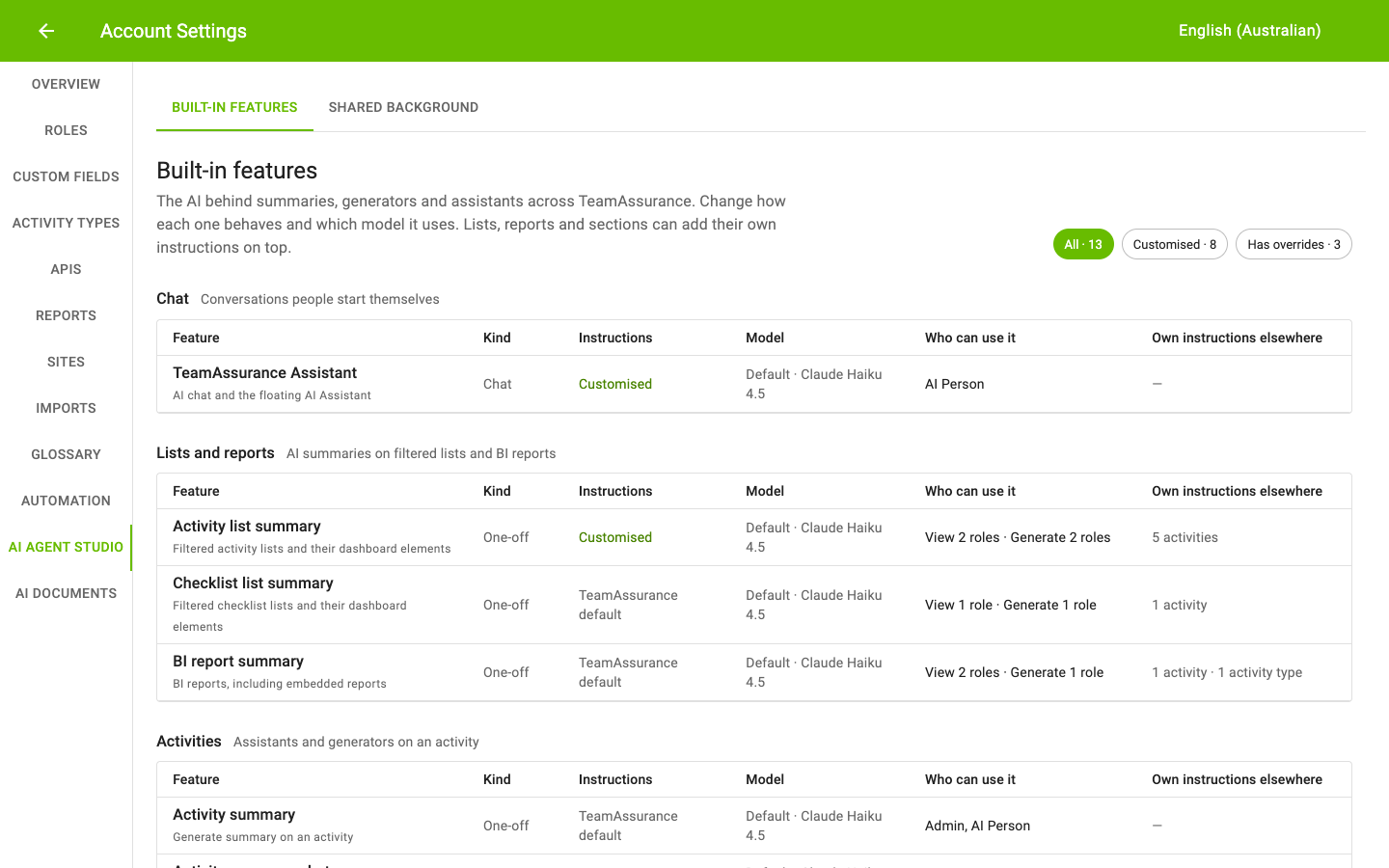
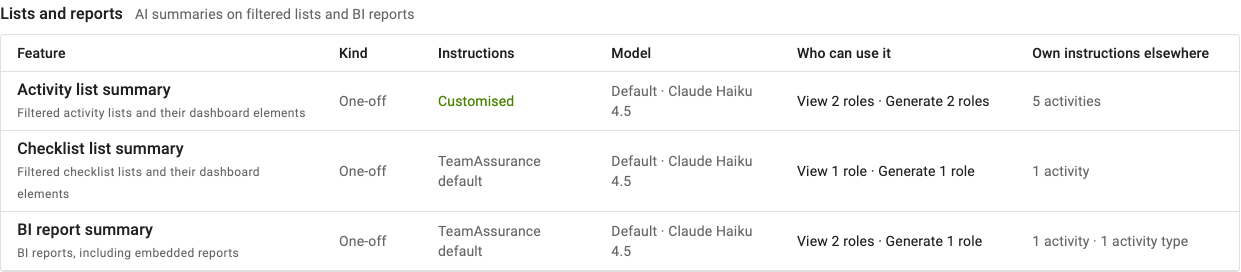
The Built-in features tab lists every AI feature in TeamAssurance, grouped into Chat, Lists and reports, Activities and Checklists. For each feature you can see:
- Kind: Chat features are conversations people start themselves; One-off features generate a result, such as a summary.
- Instructions: Customised if your organisation has changed them, otherwise TeamAssurance default.
- Model: the AI model it uses.
- Who can use it: how many roles have access. No roles yet means nobody can use the feature.
- Own instructions elsewhere: how many lists, dashboard elements, activities or BI reports have their own instructions for this feature.
Use the Customised and Has overrides filters to find the features you have changed.
Changing a feature's instructions
Select a feature to open it.
- Under Instructions, edit the text and select Save. Your instructions replace the TeamAssurance default everywhere in your organisation, except where a list, element or report has its own instructions.
- Select Compare with default to see your instructions beside the TeamAssurance default.
- Select Use default to go back to the TeamAssurance default.
Choosing a model
Under Model, choose one of the available models, or Use default to use the one TeamAssurance recommends. The default option shows which model it currently uses.
Choosing who can use a feature
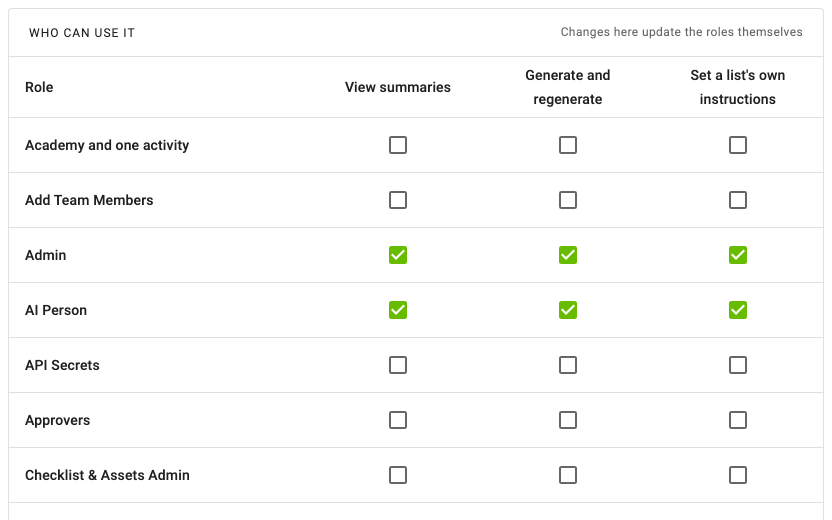
Who can use it shows your roles with a checkbox for each of the feature's permissions. For example, the activity list summary has separate permissions to view summaries, to generate and regenerate them, and to set a list's own instructions.
Changes here update the roles themselves, so the role editor shows the same permissions. If a permission is shared with other AI features, a note tells you which ones.
Instructions set on lists, elements and reports
Own instructions elsewhere lists every list, dashboard element, activity section or BI report that has its own instructions for the feature. These replace the feature's instructions where they are set.
- View shows the instructions.
- Edit lets you change them. BI report instructions are changed from the report's settings.
- Open goes to the activity they belong to.
Managing shared background
Background is information about your organisation that every AI feature receives, such as what your company does, what a site makes, or what a role is responsible for. The Shared background tab shows background at each level:
- Enterprise: applies to everyone
- Sites
- Roles
- Activity types
- Individual activities: set on the activity itself, from its menu
Select Add to give a site, role or activity type background, or Edit to change it. To remove background, clear the text and save.
This is the same information as the AI Prompt Context field on the enterprise, site, role and activity type screens, so a change in either place shows in both.
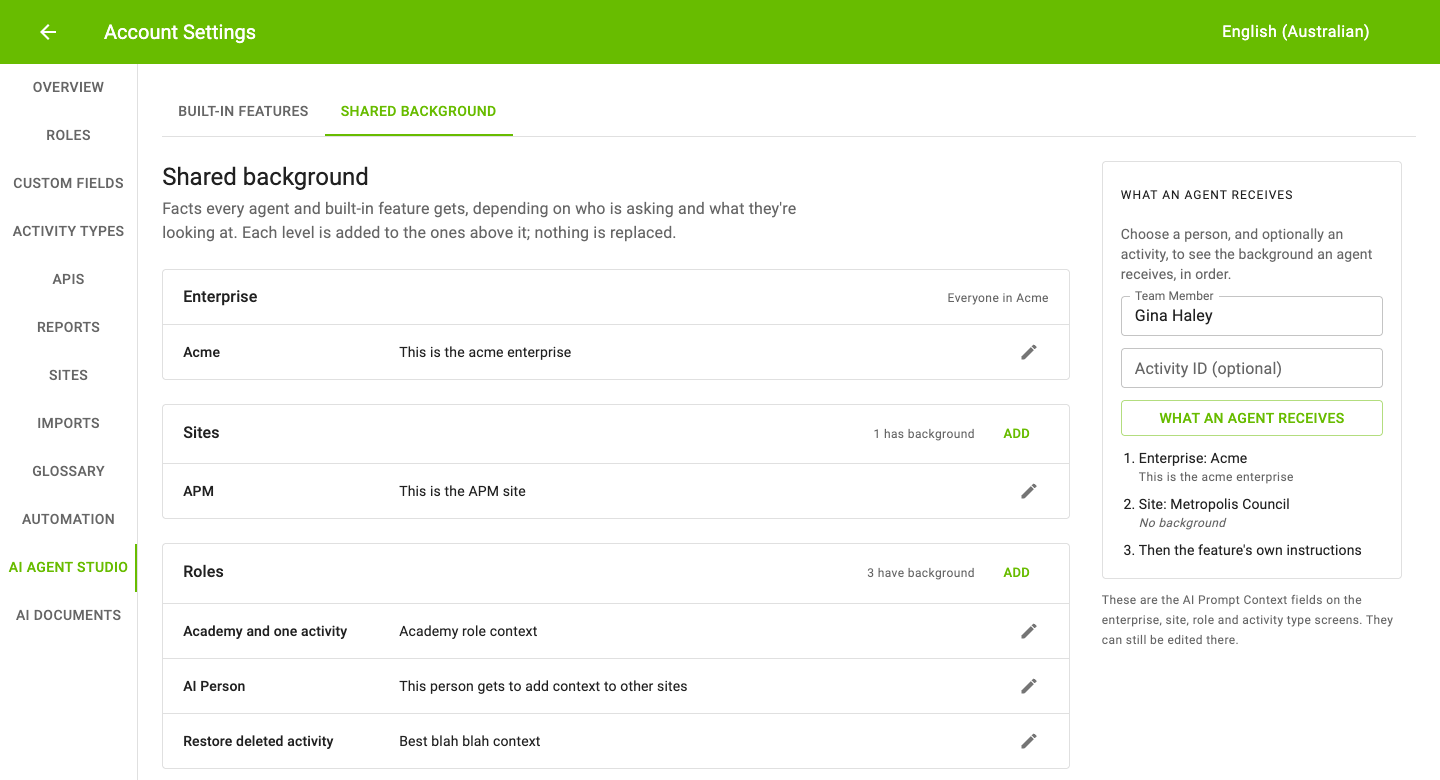
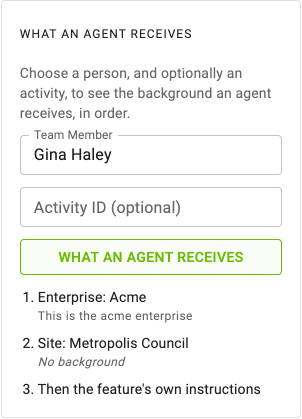
Checking what an AI feature receives
Under What an agent receives, choose a person and, optionally, enter an activity ID. AI Agent Studio shows the background an AI feature would receive for that person and activity, in order: enterprise, site, role, activity type and activity, followed by the feature's own instructions.