
Managing your Translation Glossary
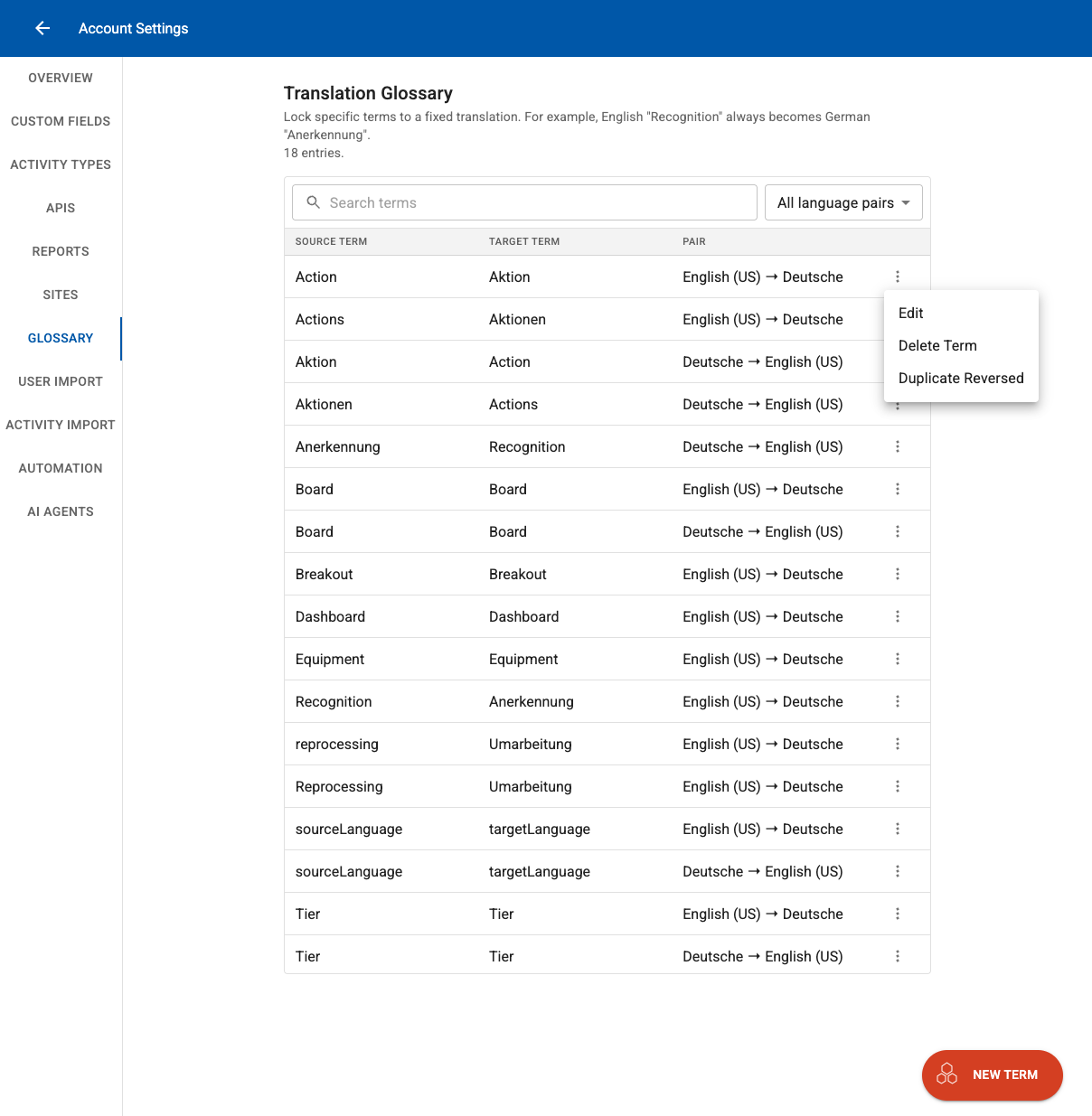
The Translation Glossary in Account Settings allows you to define exact translations for specific domain terms, overriding standard automated translation rules.
To access and configure custom translation terms:
-
Go to Account Settings in the main navigation menu.
-
Select Glossary from the left sidebar menu.
Permission Requirement: Accessing Account Settings and modifying Translation Glossary entries requires Enterprise Owner or Enterprise Admin permissions. Standard users or read-only roles will not see Account Settings.
Managing Glossary Entries
-
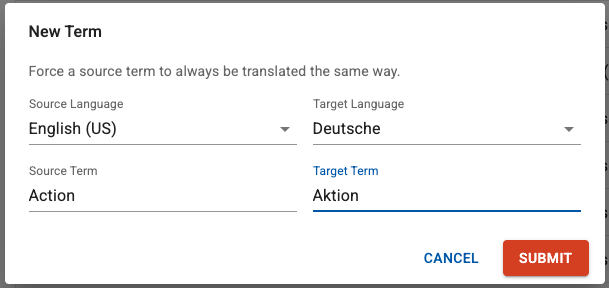
Add a New Term: Click + New Term in the bottom right corner to define a new Source Term, Target Term, and Language Pair.
-
Filter Terms: Use the dropdown menu next to the search bar to filter by language pair direction (e.g., view only English -> German or German -> English).
-
Duplicate Reversed: To quickly apply a rule in reverse, click the three-dots menu icon (⋮) on a term row and select Duplicate Reversed. This automatically swaps the source and target terms for the inverse language direction.
- Edit or Delete Terms: Click the three-dots menu icon (⋮) on any entry to access Edit or Delete Term.
Key Concepts
-
Capitalization Sensitivity: Translation rules are case-specific. If a term requires a specific capitalization in the target language (e.g., German nouns requiring an uppercase initial letter), create entries for both lowercase and uppercase variations in the source language.
-
Bidirectional Rules: Translations apply strictly in the direction defined. An English -> German rule does not automatically apply to German -> English translations.