
Record screen for support
When troubleshooting an issue, a video is worth a thousand words. Our Record Screen for Support tool allows you to capture a screen recording of the problem along with diagnostic browser logs, so our support team can help you resolve issues faster.
Key Benefits
- Faster Resolutions: Our support team can see exactly what you’re experiencing in real time.
- Automatic Diagnostic Data: The recorder automatically securely captures browser console logs (
console.log) alongside your video, eliminating the need to manually export technical logs. - Secure Transmission: The video and diagnostic log are transmitted directly to our secure support environment—completely outside of your internal infrastructure and network.
How to Record and Submit a Screen Video
1.Start the Recording Tool:
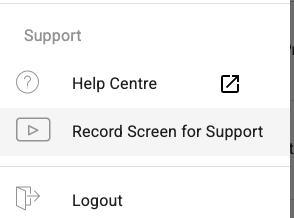
- Click on the hamburger menu located at the top left of your app interface.
-
Select Record Screen for Support.
2.Select What to Share:
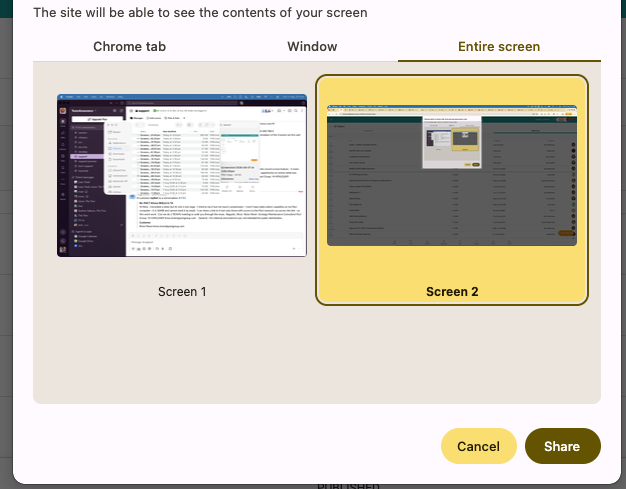
- A browser prompt will appear asking you to choose what to record (Tab, Window, or Entire Screen).
- Select the tab or screen where you are encountering the issue.
-
Click Share to begin.
3.Reproduce the Issue:
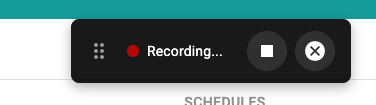
- Once the recording starts, a floating bar showing Recording... with a red indicator will appear.
- Perform the exact actions that lead to the issue or error you're experiencing.
- When you are done demonstrating the issue, click the Stop (square icon) button on the floating toolbar.
Tip: try to keep to about 30 seconds
4.Add a Description & Send:
- Once stopped, the toolbar will display the message Recording stopped.
- Click in the text box labeled "Describe the issue you experienced..." and enter a brief explanation of what went wrong.
-
Click the Send icon (paper plane) to transmit your video and diagnostic logs directly to our support team.

Toolbar Controls & Options
When your recording is stopped, you have several control options available on the floating toolbar before sending:
| Icon / Control | Action | Description |
| Text Field | Describe Issue | Type a brief description of the error or behavior you observed. |
| 👁️ / 🗓️ | Preview Video | Watch your recording before sending to ensure it captured the issue accurately. |
| 📥 | Download Video | Save a local copy of the video file to your computer. |
| ✈️ | Send | Submit the recording and background console logs directly to Support. |
| 🔄 | Restart | Discard the current recording and start a fresh screen capture. |
| ✖️ | Cancel | Close the recording widget without sending anything. |