
Tier Meeting Participants
Regular Tier Meeting or Gemba may occasionally have a guest attend. This is usually a more senior role or an adjacent function (such as engineering). This feature allows the attending guest to add themself to a scheduled event as a Participant.
For Participants
- Add yourself as a Participant
- Add others as Participants
For Admins
- Prerequisites (Admin)
- Set up the Tier schedule calendars (Admin)
Add yourself as a Participant
-
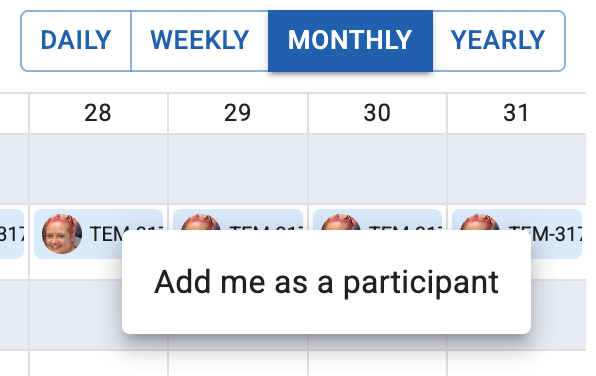
Navigate to the Team's Tier board. On the Tier schedule Calendar, right click on a future-scheduled event (future-scheduled events have a light-blue background color). A prompt will display: Add me as a Participant.
-
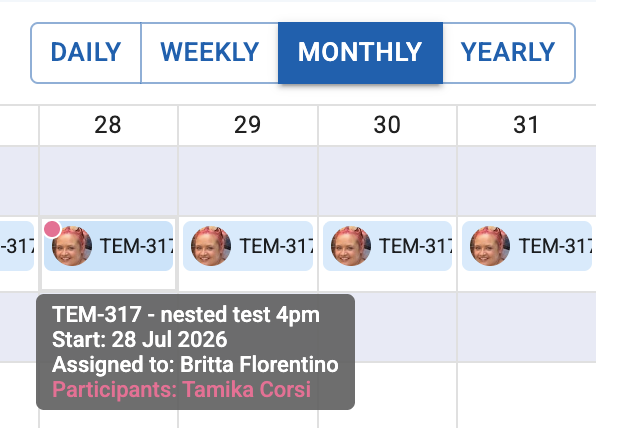
Click on this and you will be added to the event on that date. On this calendar view, this is indicated by a pink circle. Hover over the event and the Participants are listed in a tooltip.
3. When the event is scheduled (closer to the date), the Participants will be visible on the checklist

2.Add others as Participants
-
Navigate to the Team's Tier board. On the Calendar, click on a future-scheduled event to open it. The future-scheduled events have a light-blue background color.

- Open the overflow menu (three dots). Click on Add Participant.

3. This will display a list of Team Members in the current team, and you can search for other Team Members to add.

3.Prerequisites (Admin):
Tier meeting Participants requires a specific, niche setup, and will not apply to most configurations. Note that this is different to the Participant field on an Activity.
-
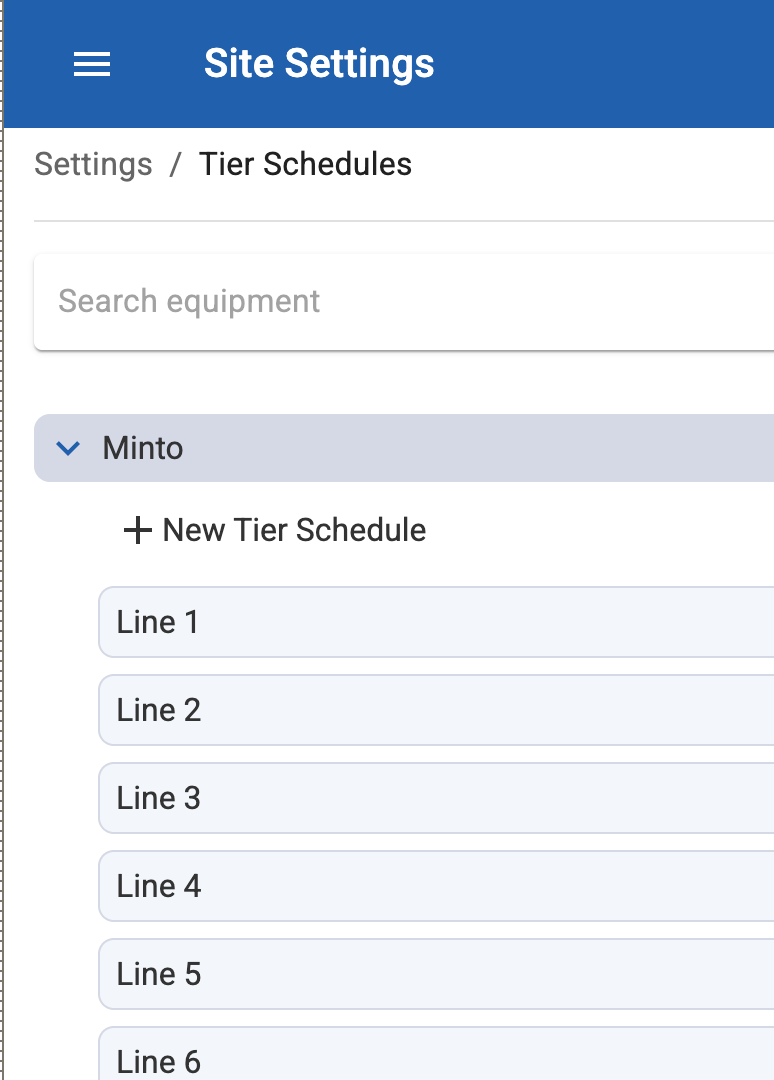
Teams must be set up in the Tier schedules (Site Settings). For each team that exists, an equivalent 'Team' should be created with the same name.
-
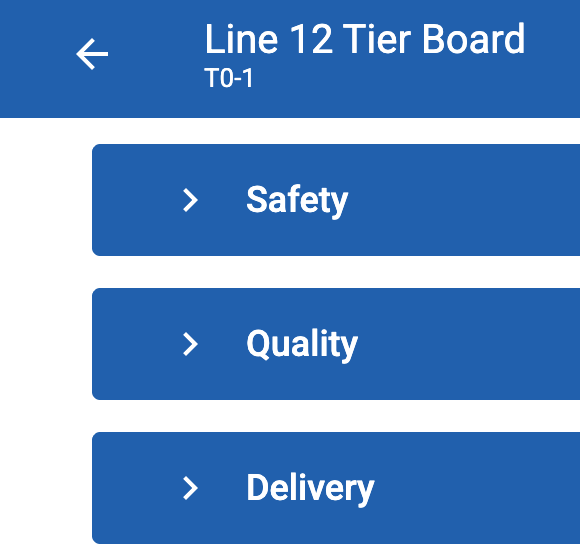
Each Team should have a Tier Meeting Board activity. This is a multi-section activity that has an agenda per section, such as Safety, Quality, Delivery.
4.Setup Asset Calendars
- Navigate to Checklists > Schedules > New Schedule.
- Create the checklist schedule for a Tier meeting or Gemba . Each schedule has a field 'Tier schedule' field, which should be populated with the relevant Team.
-
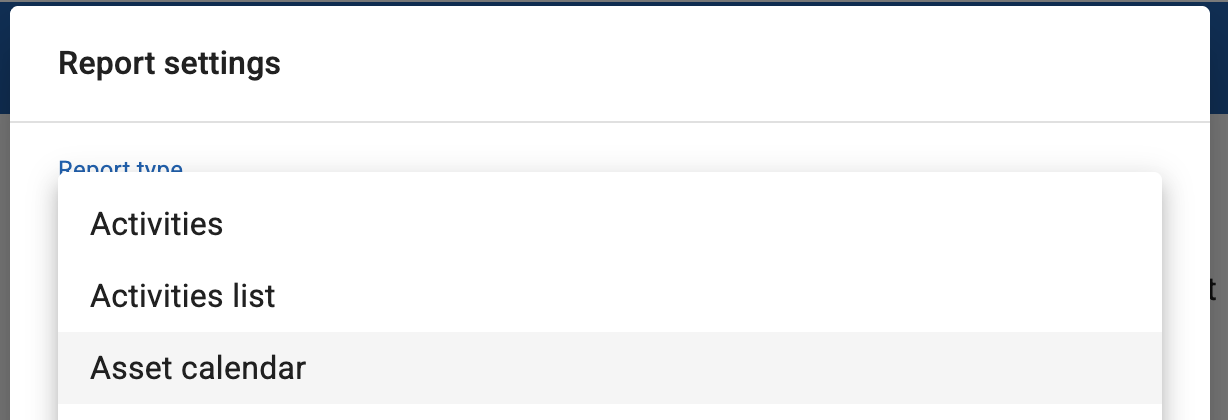
Navigate back to the Tier Board and add an Asset Calendar Report to the Tier Board (section '+' menu, Reports, Asset calendar).
-
Configure it for the Assigned Team. Save.
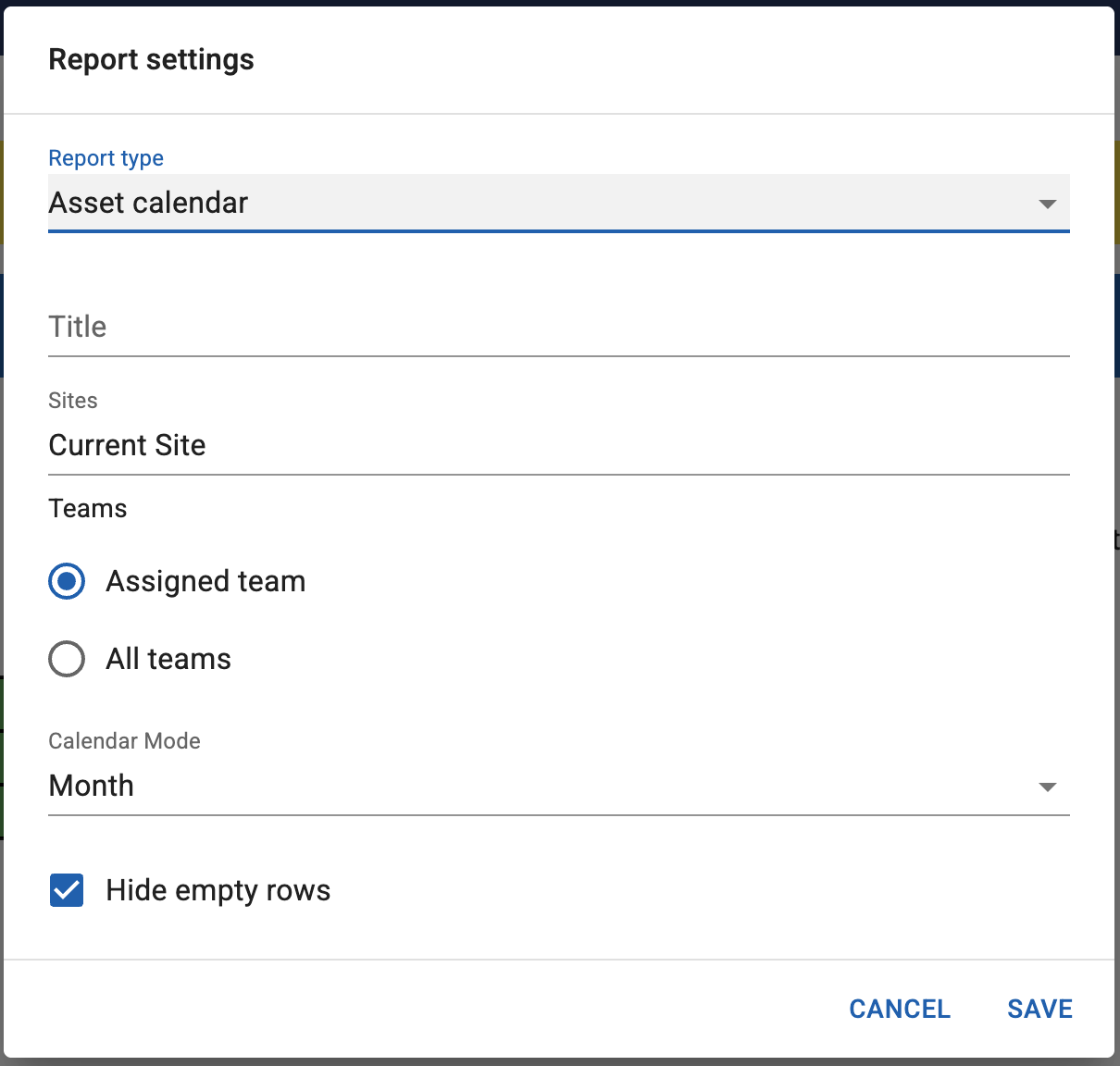
- The Tier meetings and Gembas will display, with a Team displayed per row.
FAQs
How does a Participant know about upcoming events?
Events that a Participant is added to are also added to their own Tier Schedule calendar. They'll see a row for their team, but also rows for teams where they are a Participant (or other members of their team).
Do Participants receive notifications?
No. Participants do not receive notifications.
Can a Participant be removed?
Yes, simply click on the Participant field in the Checklist. Or, for a future scheduled event, open the schedule from the Calendar. Click on the edit icon and remove the Participants.