
Embed: Qlik
Step 1: Create Your Qlik Embed Link
- Open your Qlik content in your browser.
- Look at the web address (URL) at the top of your screen. You only need to copy three specific pieces from it: your Tenant URL, App ID, and Sheet ID. For example, if your URL is:
https://company.eu.qlikcloud.com/sense/app/12345-abc/sheet/67890-xyz/state/analysis
- Create the target URL: Apply the extracted Tenant URL, App ID, and Sheet ID to the following structure:
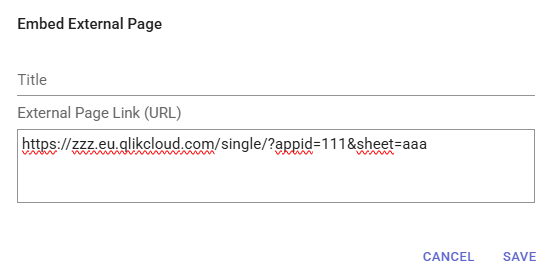
https://company.eu.qlikcloud.com/single/?appid=12345-abc&sheet=67890-xyz
Step 2: Add to TeamAssurance
Important: To view Qlik content inside TeamAssurance, you must be first logged into Qlik in the browser.
To embed Qlik content inside TeamAssurance, do the following:
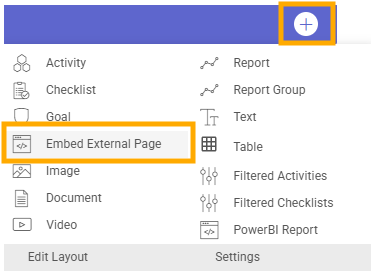
- Go to your TeamAssurance page, click on the + (plus) icon in the chosen section, and choose Embed External Page.
- Paste your new embed link into the text field and click Save.
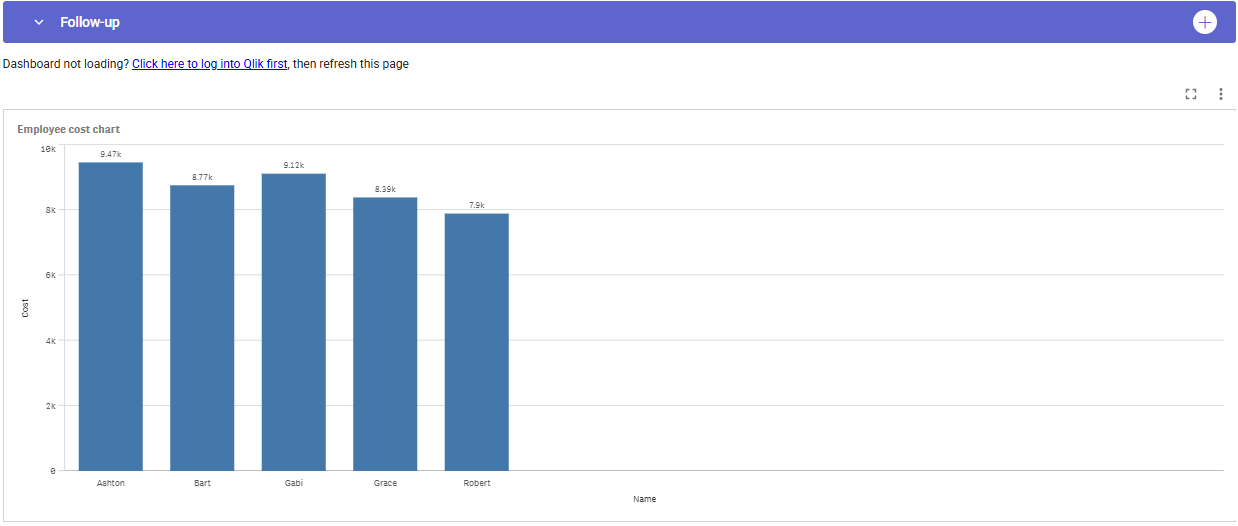
- (Optional) Add a Text field directly above your embedded content to help other users log in. Type e.g.: "Dashboard not loading? Click here to log into Qlik first, then refresh this page." Link that text to your company's Qlik URL, e.g.:
https://company.eu.qlikcloud.com
Troubleshooting (If it is not working)
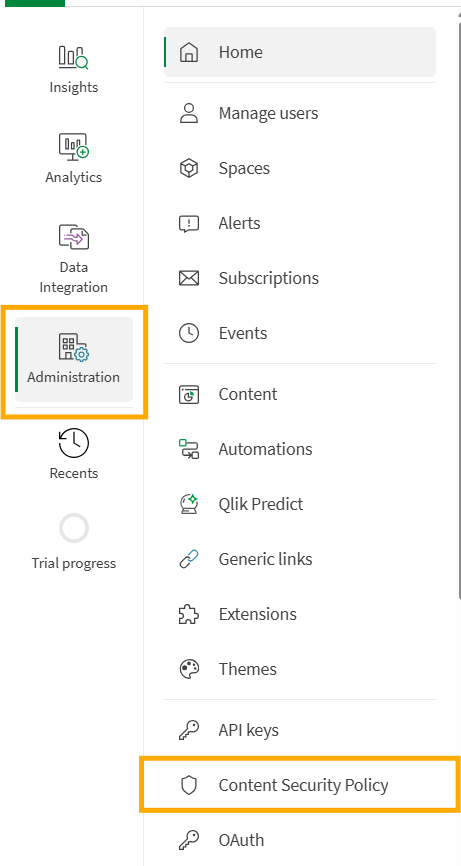
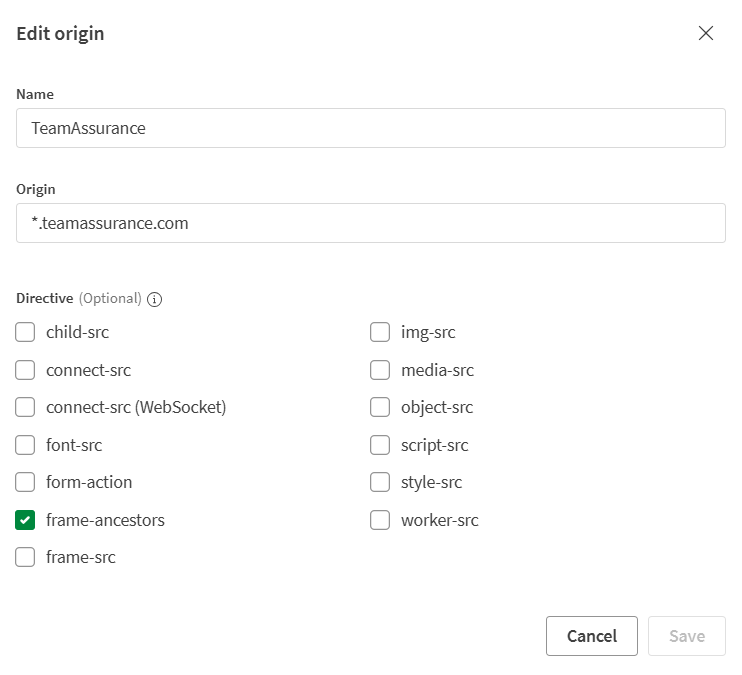
- Blank white page: You need permission to embed. Contact your Qlik Tenant Admin to enable embedding by going to Cloud Administration Activity Center -> Integration -> Content Security Policy. Add a new origin for
*.teamassurance.comand check the box forframe-ancestors.
- "login.qlik.com refused to connect" (or similar connection error): You are not logged into Qlik. Open a new tab, log into your Qlik account, then refresh the TeamAssurance page.
- Still seeing connection error after logging in: Your browser is blocking cookies. Click the eye/slash or puzzle piece icon in your browser's address bar, select Allow third-party cookies, and refresh.