
Update PowerBI Connector
The TeamAssurance Support team occasionally request you to update the PowerBI Connector to make use of the latest improvements. They will provide two json files (Update-Tables.json, Update-Workflow-Logic-Apps.json).
A. Run file Update-Tables.json
- In Azure, select the relevant Resource Group
-
Deploy a custom template
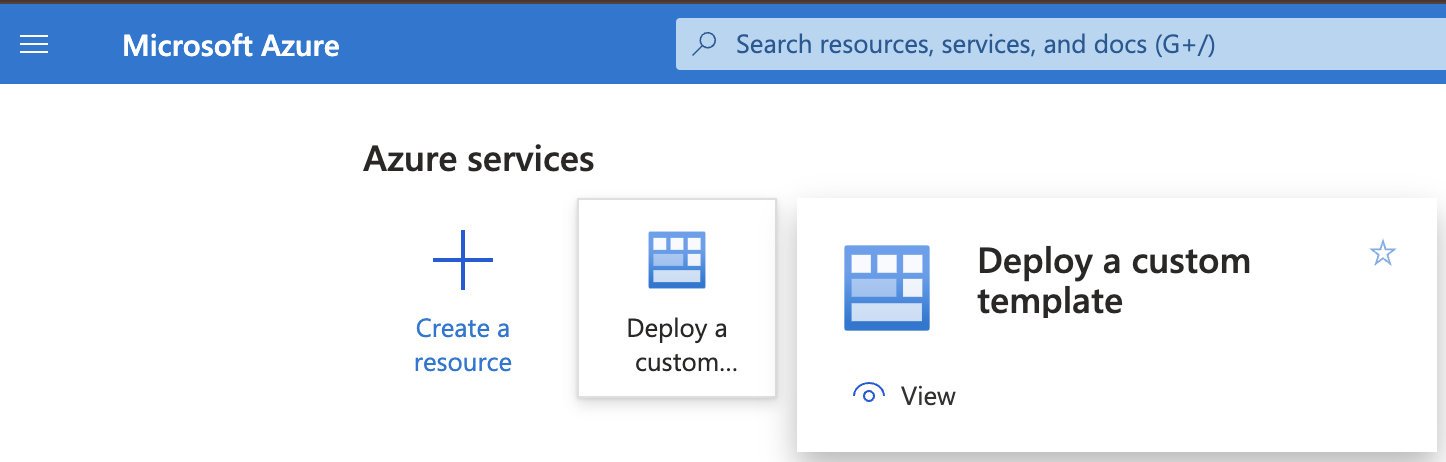
-
Click on Build your own template in the editor
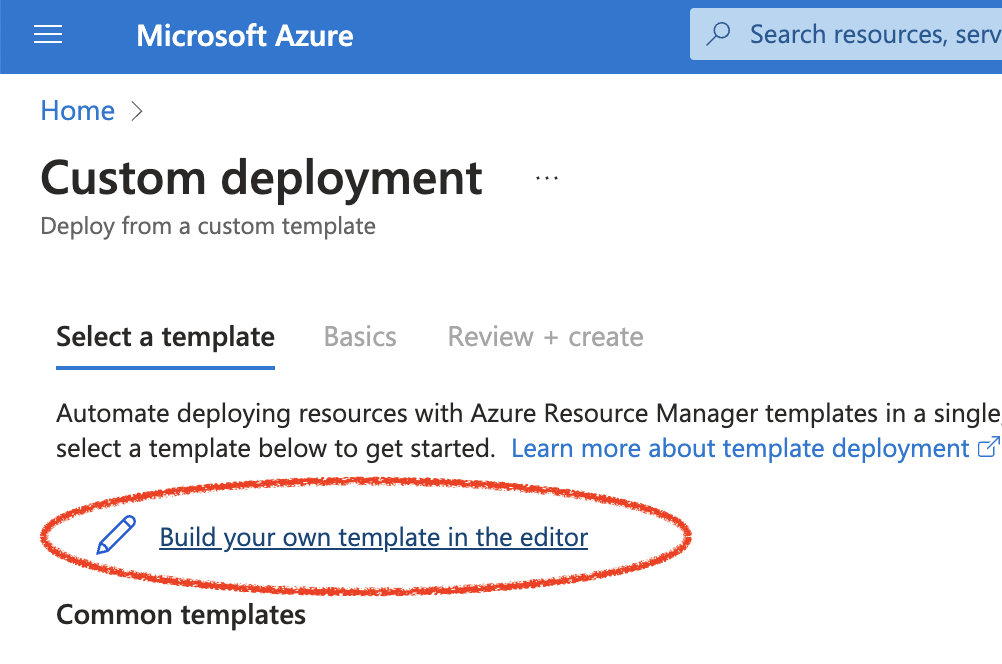
- Select json file “3. Update-Tables.json”
- Click “Review + create” then click “Create”. Wait for the deployment to complete.
B. Run file Update-Workflow-Logic-Apps.json
- Deploy a custom template, this time select “4. Update-Workflow-Logic-Apps.json”
- Click “Review + create” then click “Create”. Wait for the deployment to complete.
Note: If you have previously run Step C it does not need to be repeated and can be skipped.
C. Grant Logic App ta-import-site access to Key Vault
If ta-import-site has never been granted access to the Key Vault, run this step. You'll only need to do this once (ever).
- Open the ta-import-site Logic app
-
Click “Identity” and copy the Object (principal) ID
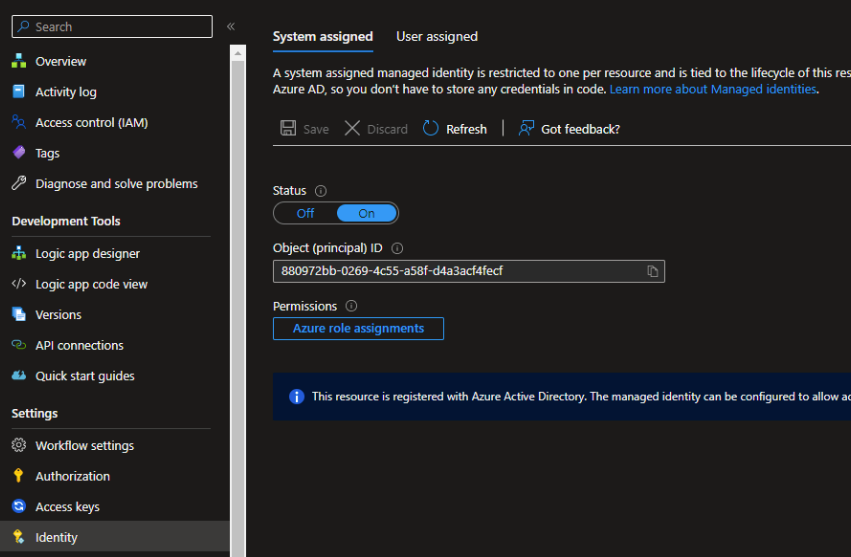
- Open the Key Vault.
-
Select Access Policies. Click Create.
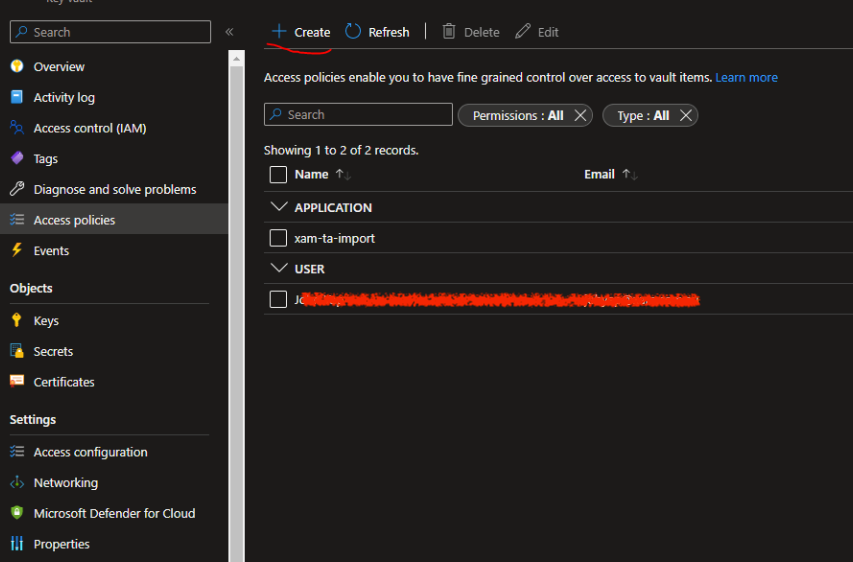
-
In Permissions, under “Secret permissions”, select “Get” and “List” and click “Next”
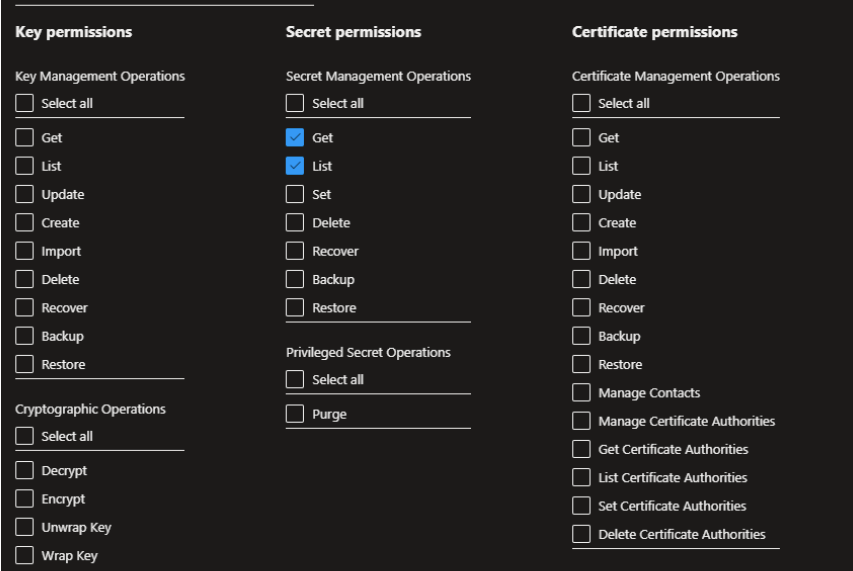
- In Principal, paste the Object ID from #2 in the search box and select the identity that pops up. Click “Next”.
- In Application (optional), click “Next”.
- In “Review + create”, click “Create”
D. Test
- Open the Logic App named ta-import
-
Select Run > Run.
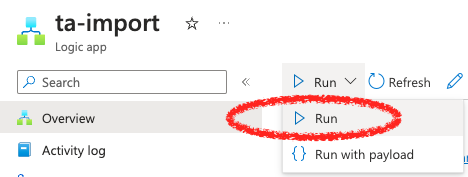
- The import will start, and depending on the amount of data already created in TeamAssurance, can take a minute or an hour or more
- You can click Refresh (see above image) to see where the import is up to
- Assuming it works, then the next import will occur overnight
