
Saved Search & Export Data
After you've configured filters to get the exact search, you can save that search. Then you can come back and run this search anytime. You can also Export your saved search or any filtered list to a csv file (compatible with Excel).
- Click on the magnifying glass (top of screen)

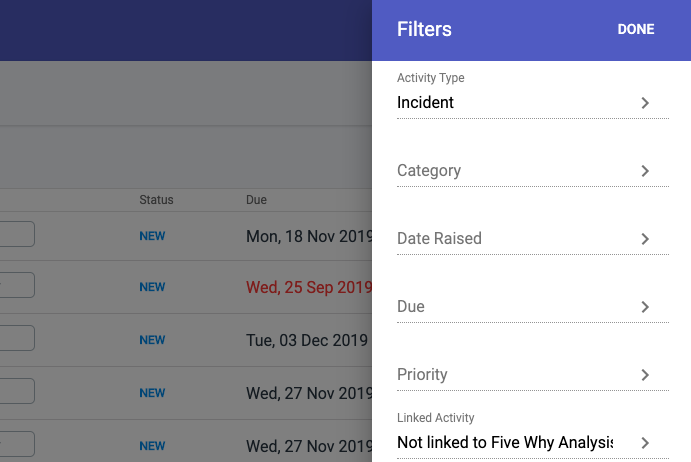
2. Configure the filters and click DONE
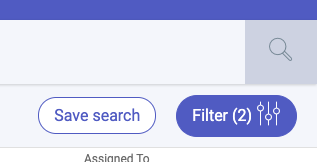
3. Click on Save Search
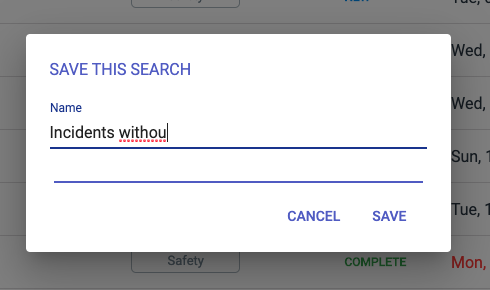
4. Name the Saved Search
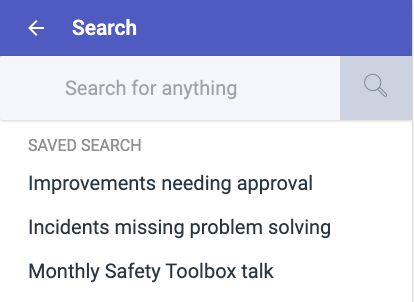
5. Exit search, then click on the search icon again. The first thing you'll see is a list of Saved Searches. Click on any of these and your search will run again.
Export Data Select View All to make visible Export Data button
- Activity Search's Export data includes a column with any Linked Activities
Note: A Saved Search is only visible to you, and only saved for your login.